Best Free AI Tools to Summarize PDF Files in 2026

Sometimes you only need the main argument. Other times you need important statistics, definitions, conclusions or a quick explanation of one difficult section. This is exactly where an AI PDF summarizer can save a lot of time.
Modern AI tools can do much more than turn a long PDF into five bullet points. You can upload a document, ask questions about it, create study notes, simplify technical language, compare sections and sometimes trace an answer back to the relevant part of the original document.
The difficult part in 2026 is no longer finding an AI that can read PDFs.
It’s deciding which AI PDF summarizer is actually useful for your task.
Some are better for quick summaries. Others are designed around research and source citations. General AI assistants are better when you want to transform a PDF into notes, questions or new content. Dedicated PDF tools can be easier when you simply want to upload a document and start reading.
We compared the most useful options based on PDF support, free availability, citations, follow-up questions, study features and ease of use.
Read More – How to Use NotebookLM to Turn PDFs Into Notes, Quizzes & Study Guides
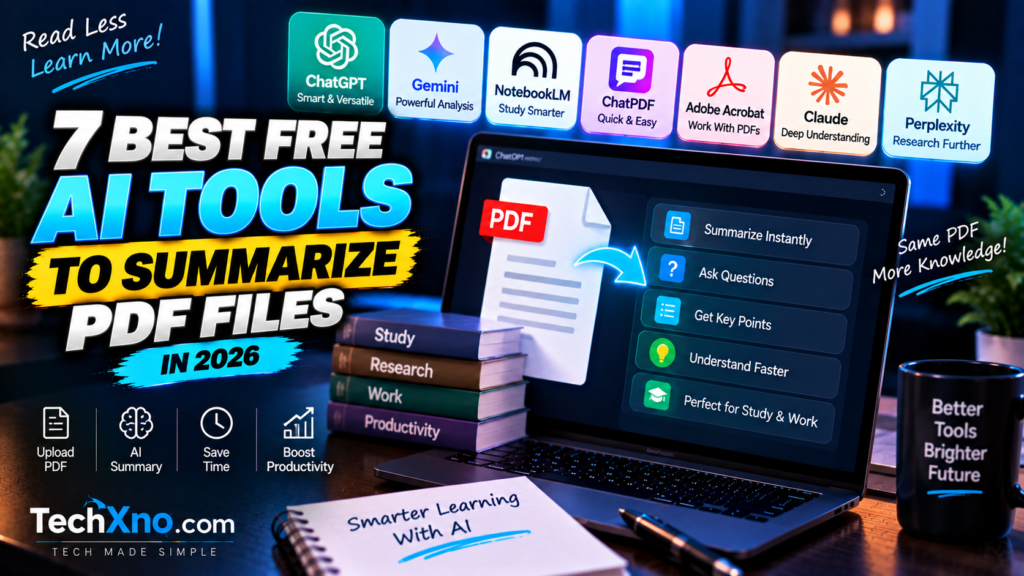
Here are 7 of the best free AI tools to summarize PDF files in 2026.
Quick Comparison of the Best AI PDF Summarizers
| AI Tool | Best For | PDF Questions | Source References | Free Access |
|---|---|---|---|---|
| ChatGPT | Overall PDF analysis | Yes | Depends on workflow | Available with limits |
| Gemini | Large files & general analysis | Yes | Depends on response | Available with limits |
| Gemini Notebook | Study & source-grounded research | Yes | Strong source grounding | Free access available |
| ChatPDF | Quick PDF summaries | Yes | Page references | 2 free PDFs/day currently |
| Adobe Acrobat AI Assistant | Working directly inside PDFs | Yes | Linked citations | Basic/free access with limits |
| Claude | Long-document understanding | Yes | Document-based answers | Free usage available with limits |
| Perplexity | Research around PDF information | Yes | Strong web citations | Free tier available |
Free plans, limits and AI features can change, so always check the tool’s current pricing and usage page before choosing one for regular work.
ChatGPT – Best Overall AI Tool for Working With PDFs
ChatGPT is one of the most flexible choices because PDF summarization is only the beginning.
Upload a PDF and you can ask for a short summary, detailed explanation, chapter-by-chapter notes, important definitions, comparison table, questions, revision notes or a simplified explanation of difficult material.
OpenAI officially documents file uploads for tasks including summarizing complicated research papers, comparing documents, extracting particular information and transforming documents into other formats.
Instead of simply typing:
“Summarize this PDF.”
you can give ChatGPT a more specific instruction:
“Summarize this PDF in simple language. Give me the 10 most important points, explain the main conclusion and list any important statistics separately.”
That usually produces something far more useful.
Students can ask:
“Turn this chapter into revision notes and create 15 questions from the important topics.”
A professional could ask:
“Give me a one-page executive summary and list every action item, deadline and responsible person mentioned in the document.”
And researchers can ask for methodology, findings, limitations and conclusions separately.
Where ChatGPT is strongest
Its biggest advantage is flexibility.
You’re not restricted to receiving one automatically generated summary. You can continue working with the document after the first answer.
For example:
PDF → Summary → Explanation → Notes → Questions → Final revision sheet
That makes ChatGPT particularly useful when your objective isn’t merely to shorten a document but to understand and reuse its information.
There is one important limitation to understand. OpenAI currently documents full visual retrieval of images, charts and diagrams embedded inside PDFs as an Enterprise capability. Other PDF workflows may rely primarily on extracted text, so don’t automatically assume every embedded chart or visual has been interpreted.
For text-heavy PDFs, however, ChatGPT remains one of the most versatile choices.
Best for: Students, general users, reports, assignments and research papers.
Google Gemini – Best for Large Documents and Google Users
Gemini is another strong general-purpose option for summarizing PDF files.
Google officially supports uploading documents and other files to Gemini Apps and asking for answers, summaries and insights based on that content.
Its workflow is simple.
Open Gemini, attach your PDF and enter a prompt describing exactly what you want.
You could ask:
“Read this PDF and explain its main argument in simple English.”
Or:
“Summarize every chapter separately and identify the five conclusions I should remember.”
Gemini can also work with several files in one prompt. Google’s current documentation says users can add up to 10 supported files in the same prompt, subject to availability, while non-video supported files can be up to 100 MB. Rolling usage limits apply, and higher limits are available through paid Google AI plans.
That’s particularly useful when you’re working with several class notes, reports or related documents.
Where Gemini is strongest
Gemini becomes especially convenient if your workflow already revolves around Google products.
You can upload files, ask follow-up questions and continue transforming the information into explanations or other useful material.
Google also warns that very large uploads can sometimes cause connections or details to be missed when the content exceeds the model’s effective context capacity. That’s an important reminder that “supports a huge file” and “perfectly remembers every sentence in that file” aren’t the same thing.
For critical research, always verify important claims against the original PDF.
Best for: Large documents, Google users and multi-file analysis.
Gemini Notebook – Best for Students and Source-Grounded Study
If ChatGPT and Gemini are general AI assistants, Gemini Notebook is much closer to a dedicated research and study workspace.
Many users may still recognize it by its previous name, NotebookLM.
The difference becomes obvious once you add your sources.
Instead of treating a PDF as something you summarize once and forget, a notebook lets you build a workspace around your material. You can add sources and continue asking questions grounded in those sources.
That makes it particularly useful for:
- Lecture PDFs
- Research papers
- Class notes
- Textbook chapters
- Study material
- Multiple documents about the same subject
Suppose you have five PDFs for an upcoming exam.
Instead of summarizing them individually and storing five disconnected answers, you can organize the material together and use the notebook as a study environment.
You can ask:
“Which concepts appear across several of these sources?”
“Explain Chapter 4 using only my uploaded material.”
“Create revision questions from the important topics.”
“Which source discusses this definition?”
This source-focused approach is one reason the tool is particularly useful for students and researchers.
More than PDF summaries
Gemini Notebook can go beyond conventional summaries with study-oriented outputs such as guides, quizzes, flashcards and other ways of exploring source material.
That’s useful because reading a summary is passive.
Testing yourself with questions or flashcards forces you to recall what you’ve learned.
If your goal is simply “tell me what this one PDF says,” ChatPDF may feel quicker.
But if your goal is:
“Help me study these PDFs for the next two weeks,”
Gemini Notebook becomes much more interesting.
Best for: Students, exam preparation, multiple sources and source-grounded research.
ChatPDF – Best for Fast and Simple PDF Summaries
Sometimes you don’t need a general AI assistant.
You just want to upload a PDF and understand it.
That’s exactly the experience ChatPDF is designed around.
Its current PDF Summary tool allows you to upload a document and generate a summary without creating an account. ChatPDF says its free access currently allows up to 2 PDFs per day without registration.
The interface is built specifically around documents, so there isn’t much to learn.
Upload.
Summarize.
Ask questions.
Done.
ChatPDF also provides references to pages in the original PDF, allowing you to jump back to the relevant section and verify the information rather than blindly trusting an AI-generated answer.
That is especially useful for academic papers.
Imagine the AI tells you:
“The researchers found a significant improvement in the second experiment.”
A page reference lets you go directly to the relevant portion of the paper and read what the authors actually wrote.
Who should use ChatPDF?
ChatPDF makes sense for people who don’t need dozens of AI features.
If your normal workflow is:
Upload research paper → Read summary → Ask 3–4 questions → Close
a dedicated tool can feel faster than a general chatbot.
Its current free allowance is relatively limited compared with heavy daily use, so students processing many PDFs may eventually prefer a broader research workspace.
But for occasional documents, the simplicity is a major advantage.
Best for: Quick summaries, research papers and beginners.
Adobe Acrobat AI Assistant – Best for People Who Already Work With PDFs
Adobe has been working with PDF files for decades, so its approach to AI summarization feels different from a normal chatbot.
Instead of moving the document into a completely separate AI workflow, Acrobat adds AI features around the PDF itself.
Adobe’s current Generate Summary feature can produce an overview containing section headings and summaries. Users can select cross-references to move to the corresponding section in the document and then ask AI Assistant follow-up questions.
That connection between summary and source is valuable.
When you’re dealing with a contract, report, manual or research document, you shouldn’t accept an important statement merely because an AI generated it.
You want to know:
“Where in the document did this come from?”
Adobe’s AI-generated summaries and responses can include linked or numbered citations that help users return to the source material.
Adobe also says its current online PDF AI can work with scanned or image-based PDFs using built-in text recognition. Its PDF summarizer documentation currently lists support for documents up to 600 pages or 100 MB for that experience.
Why Adobe is useful
This is a particularly good option when your job already happens inside PDFs.
Think:
- Business reports
- Contracts
- Research documents
- Manuals
- Financial material
- Long professional PDFs
You can generate an overview and continue asking questions without treating the PDF merely as an attachment to a chatbot.
Adobe provides ways to try its AI PDF tools for free, although AI feature availability and usage limits can differ from its ordinary free PDF tools and paid plans.
So don’t interpret “free PDF tools” as meaning every AI capability is permanently unlimited.
Best for: Professionals, scanned PDFs and people already using Acrobat.
Claude – Best for Reading Long and Complex Documents
Claude is another general AI assistant worth considering when your PDF contains long explanations, technical material or complex reasoning.
The workflow is similar to other AI assistants:
Upload your document and tell Claude what you want to understand.
For example:
“Explain the methodology and findings of this research paper separately. Then identify the limitations mentioned by the authors.”
This is usually much better than requesting a generic summary because it forces the output into a useful structure.
Claude can also be helpful when you want a document rewritten into simpler language or want to discuss the ideas inside a long document through follow-up questions.
For study material, you might request:
“Explain this PDF as if you’re teaching a first-year college student. Keep all important technical terms but explain each one simply.”
For business material:
“Give me the major risks, financial figures, decisions and action items from this report.”
Where Claude fits
Claude makes the most sense when the document requires understanding and explanation, rather than simply producing the shortest possible summary.
Free usage is available, but usage limits and available models/features can change over time. For that reason, check Claude’s current plan information if you’re planning to process many large documents regularly.
And as with every AI tool in this list, important information should still be checked against the original PDF.
Best for: Complex documents, long-form explanation and technical reading.
Perplexity – Best When Your PDF Needs Additional Research
Perplexity approaches the problem from another direction.
The other tools on this list are primarily useful when you want to understand what’s inside your document.
Perplexity becomes particularly interesting when you want to connect the document to information outside it.
Imagine you’ve uploaded a research paper from 2022.
You could summarize the paper first and then research whether newer studies support, challenge or expand on its conclusions.
That makes the workflow:
PDF → Understand original source → Research newer information → Compare evidence
This can be much more useful than an isolated summary.
The same idea applies to reports.
If a PDF discusses an industry trend, you may want current sources explaining what has changed since the report was published.
For academic work, however, be careful not to mix the PDF author’s actual claims with information discovered elsewhere.
Ask the AI to separate them clearly.
For example:
“First summarize only what this uploaded paper says. Then separately find newer information about the same topic. Do not mix the two sections.”
That keeps your research easier to verify.
Best for: Research workflows where PDF information needs current external context.
Which Free AI PDF Summarizer Should You Choose?
There isn’t one perfect AI PDF summarizer for every person because “summarize my PDF” can mean very different things.
If you want the most flexible all-round workflow, ChatGPT is a strong option because you can continue transforming the document after summarizing it.
If you regularly handle large files or already use Google’s ecosystem, Gemini is convenient.
For students working with several sources over time, Gemini Notebook is especially useful because the notebook becomes a study workspace rather than a one-time summarizer.
If you simply want to upload one PDF and immediately start asking questions, ChatPDF is difficult to beat for simplicity.
For professional PDF workflows, source-linked summaries and scanned documents, Adobe Acrobat AI Assistant has clear advantages.
Claude is worth considering for long and complex explanations, while Perplexity becomes useful when you want to connect a document with broader research.
A simple way to choose is:
Quick PDF → ChatPDF
PDF + lots of follow-up work → ChatGPT
Large files/general Google workflow → Gemini
Study several PDFs together → Gemini Notebook
Professional/scanned PDF workflow → Adobe Acrobat
Long complex reading → Claude
PDF + wider web research → Perplexity
You don’t need seven AI subscriptions.
Start with the tool that matches what you actually do with PDFs.
How to Get Better PDF Summaries From Any AI Tool
The quality of an AI summary depends partly on the document, but your prompt matters too.
A weak prompt is:
“Summarize this.”
The AI has to decide what “summary” means.
Do you want five bullets? Two pages? Important statistics? Exam notes? An executive summary? Only conclusions?
Give it a job instead.
For a research paper, try:
“Summarize this research paper under Objective, Methodology, Key Findings, Limitations and Conclusion. Include important numbers and tell me which section of the PDF I should verify for each major claim.”
For studying:
“Explain this PDF in simple language without removing important concepts. Then give me revision notes, 15 questions and five topics I should study again.”
For a business report:
“Create a one-page executive summary. Separate financial figures, risks, decisions, deadlines and action items.”
For a very long PDF, don’t always request one giant summary.
First ask the AI to identify the document’s structure. Then summarize important sections individually before requesting an overall synthesis.
This reduces the chance that a small but important section disappears inside a generic summary.
Most importantly, use the AI summary as a navigation tool, not an unquestionable replacement for the source.
AI systems can misunderstand wording, miss context or generate incorrect statements. For assignments, research, contracts, financial information or other important work, open the original PDF and verify the claims that matter.
A five-minute summary can save you hours of reading.
It shouldn’t save you the thirty seconds required to check an important fact.
Final Thoughts
The best free AI tools to summarize PDF files in 2026 are no longer simple text-shortening websites.
Tools such as ChatGPT and Gemini can turn documents into interactive conversations. Gemini Notebook can transform a collection of PDFs into a study workspace. ChatPDF makes one-document summarization extremely simple, while Adobe Acrobat keeps AI closely connected to the PDF and its source locations.
The important thing is choosing the right workflow.
Don’t choose an AI PDF summarizer because it has the longest feature list.
Choose it based on what happens after the summary.
If you’re studying, you probably need questions and source grounding. If you’re researching, you need verification. If you’re working with reports, you may need figures and action items. If you’re reading one simple document, you may only need a quick summary.
And regardless of which AI you choose, keep the original PDF nearby.
The AI should help you understand the source faster—not convince you that you no longer need the source.
Frequently Asked Questions
What is the best free AI tool to summarize a PDF?
It depends on the task. ChatGPT is flexible for summarizing and transforming documents, Gemini works well for general file analysis, Gemini Notebook is useful for source-grounded study, ChatPDF is simple for quick summaries, and Adobe Acrobat AI Assistant keeps summaries closely connected to PDF content.
Can ChatGPT summarize a PDF for free?
ChatGPT supports file-based document analysis, including summarization, although availability, usage limits and capabilities depend on the current plan and product configuration. OpenAI officially lists summarizing complicated research papers and documents among supported file-upload use cases.
Is ChatPDF completely free?
ChatPDF currently states that its free plan allows users to analyze 2 documents per day, with paid access available for heavier usage. Limits can change, so check its current plan before relying on that allowance long-term.
Can Gemini summarize PDF files?
Yes. Google officially says Gemini Apps can upload and analyze documents and provide answers, summaries and insights based on uploaded content. Upload and analysis limits apply.
Which AI PDF summarizer is best for students?
Gemini Notebook is particularly useful when studying from multiple sources because it is built around source-grounded notebooks and study workflows. ChatGPT is another useful choice when you want to transform PDF content into explanations, revision notes or practice questions.
Can AI summarize a scanned PDF?
Some tools can. Adobe currently says its PDF AI can analyze scanned and image-based PDFs using built-in text recognition, while ChatPDF also advertises scanned-PDF support. Results still depend heavily on scan quality and text recognition.
Are AI PDF summaries accurate?
They can be useful, but they aren’t guaranteed to be completely accurate. Important statements, statistics, quotations and conclusions should be checked against the original document, especially for academic, legal, financial or professional work.
Can AI summarize a 500-page PDF?
Some current tools support very large documents. Adobe, for example, currently documents support for PDFs up to 600 pages or 100 MB in its online AI summarizer experience, while Gemini supports large file uploads but warns that very large content can cause details or connections to be missed depending on context limits.
Is it safe to upload private PDFs to an AI summarizer?
Don’t automatically upload confidential documents to any AI service. Review the provider’s current privacy, retention and data-use policies first, particularly for business, legal, financial, medical or personally identifiable information. For example, Adobe states that files uploaded to its online PDF AI are deleted from its servers unless you sign in to save them.