Limit Battery Charge to 80% in Windows 11

If your laptop spends most of the day plugged into a charger, you may have wondered whether keeping the battery at 100% all the time is actually a good idea.
That’s where an 80% battery charge limit can be useful.
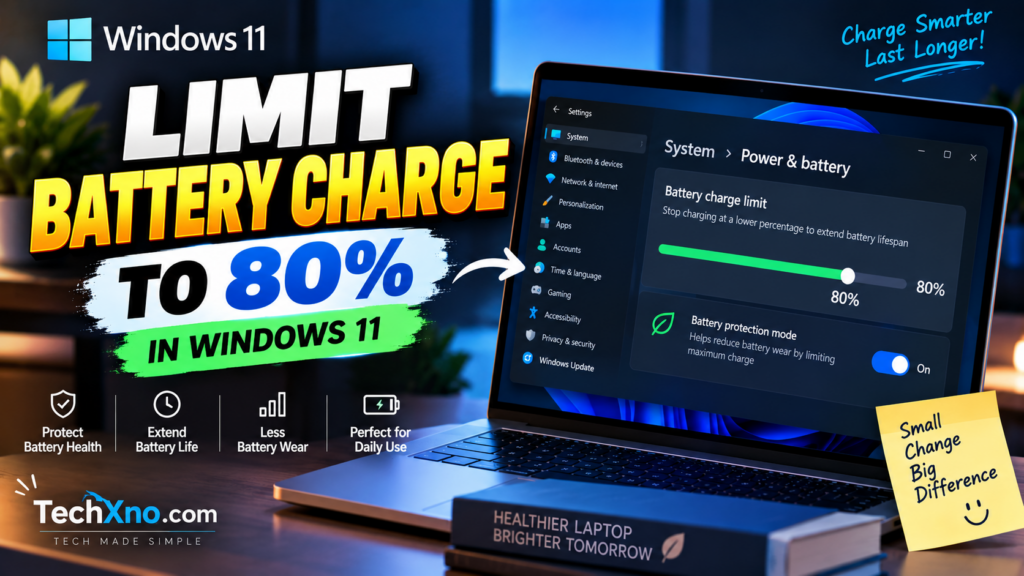
Many modern laptops include a battery protection or smart charging feature that can stop — or effectively limit — charging before the battery stays at full capacity for long periods. The confusing part is that Windows 11 doesn’t provide one universal “Stop charging at 80%” switch for every laptop.
Instead, the setting usually comes from your laptop manufacturer through its own app, BIOS/UEFI, or battery-management system.
So, let’s find the right setting for your laptop and get it configured properly.
Can You Limit Battery Charge to 80% in Windows 11?
Yes, on many laptops — but the feature depends on your hardware.
If you open Settings → System → Power & battery, you won’t normally find a universal Windows setting where you can simply enter “80%.”
That’s because charging is controlled partly by the laptop’s hardware, firmware, and manufacturer-specific battery-management system.
Depending on your laptop, the feature may be called something like:
- Battery Charge Limit
- Conservation Mode
- Battery Health Charging
- Smart Charging
- Battery Care
- Custom Charge
- Primarily AC Use
And here’s another important detail: not every manufacturer uses exactly 80%.
Some laptops may target around 80%, while others use a different threshold or automatically manage charging based on your usage habits.
So don’t worry if your laptop doesn’t have a button literally labeled “80%.”
How to Set an 80% Battery Charge Limit on HP Laptops
HP’s battery-management options vary quite a bit between models.
Some supported HP business laptops provide battery-health management features through the BIOS/UEFI, while other models may manage charging automatically rather than giving you a simple manual 80% slider.
A good place to start is the BIOS.
Restart your HP laptop and enter the BIOS/UEFI setup using the appropriate startup key for your model. Look through sections related to:
Power Management, Battery Health Manager, Adaptive Battery Optimizer, or similar battery options.
If your model provides HP Battery Health Manager, you’ll normally see options designed to balance battery runtime with long-term battery health.
The exact wording can differ depending on the laptop generation and BIOS version, so avoid changing unrelated BIOS settings while you’re there.
If you can’t find a charge-limit option, search HP’s official support documentation using your exact laptop model. Some HP laptops simply don’t expose a user-selectable 80% charging limit.
How to Limit Battery Charging on Lenovo Laptops
Lenovo makes this relatively straightforward on many supported laptops through Lenovo Vantage.
Open Lenovo Vantage and look for battery or power settings.
Depending on your model and version of the app, you may find Conservation Mode or another battery charging option.
Conservation Mode is designed for laptops that spend a lot of time plugged into AC power. Instead of constantly keeping the battery fully charged, the laptop maintains a lower charge level to reduce the time the battery spends near maximum capacity.
The exact charging threshold can vary between Lenovo models, so don’t be surprised if yours doesn’t stop at exactly 80%.
If you regularly work at a desk with your Lenovo plugged in, this is the type of feature I’d consider enabling.
When you’re travelling and need every possible minute of battery life, you can disable the limit and charge normally before leaving.
How to Set a Battery Charge Limit on Dell Laptops
Many Dell laptops provide charging controls through Dell’s power-management software or BIOS settings.
Depending on your model, look for battery charging options in a Dell utility installed on the laptop or enter the BIOS/UEFI and find the battery configuration section.
Some Dell systems provide charging modes such as:
Standard — charges normally.
ExpressCharge — prioritizes faster charging on supported systems.
Primarily AC Use — designed for laptops that spend most of their time connected to external power.
Custom — on supported models, lets you choose when charging should start and stop.
If your Dell laptop provides a Custom charging mode, you may be able to configure a maximum charging threshold around 80%.
The names and available options differ between Dell models, so use the settings available for your particular device rather than following a random BIOS screenshot from another laptop.
How to Limit Battery Charge to 80% on ASUS Laptops
ASUS provides battery-care features on many supported laptops through its software utilities.
Depending on the laptop, you may find the setting in MyASUS or another ASUS management utility.
Open the ASUS app and look for sections related to:
Device Settings → Power & Performance → Battery Care Mode
The exact menu can vary by model and software version.
On supported devices, Battery Care Mode can reduce the amount of time your battery remains fully charged. Some ASUS laptops may offer an 80% charging mode, while older models and utilities may use different maximum-charge options.
If you don’t see Battery Care Mode, update MyASUS and check the official support information for your specific laptop model.
Again, don’t install third-party “battery limiter” programs just because the manufacturer’s option is difficult to find.
The actual charging limit needs proper hardware and firmware support.
What About Acer, Microsoft Surface and Other Laptops?
Other manufacturers also provide battery-protection features, but they don’t all work the same way.
Acer laptops may provide charging-limit options through AcerSense or other manufacturer software on supported models.
Microsoft Surface devices can use Smart Charging, which automatically helps manage periods when the device remains plugged in for extended periods. Unlike a basic manual limiter, smart charging may activate based on usage patterns and device conditions.
Samsung, MSI and other manufacturers have their own battery-management features as well.
The easiest way to find yours is to search the manufacturer’s official documentation for:
“[your exact laptop model] battery charge limit”
Using the exact model matters. Two laptops from the same brand can have completely different battery-management features.
If your laptop doesn’t support a charging threshold through its manufacturer software or BIOS, Windows alone generally can’t force the hardware to stop charging at exactly 80%.
Does Limiting Laptop Battery Charging to 80% Improve Battery Health?
This is the reason people usually enable the feature in the first place.
Lithium-ion batteries gradually degrade over time, and battery aging can be affected by factors including temperature and how much time the battery spends at a high state of charge.
If your laptop sits on a desk connected to power almost every day, limiting the maximum charge can reduce the amount of time the battery spends sitting completely full.
But there’s a trade-off.
An 80% limit means you’re deliberately giving up roughly the top portion of your available battery capacity when you unplug.
If you travel frequently or need maximum runtime, charging to 100% before leaving makes sense.
If your laptop spends 90% of its life connected to a charger, a battery-care mode becomes much more attractive.
Think of the 80% limit as a battery longevity feature, not a rule that everyone must follow.
And don’t become obsessed with hitting exactly 80%. A manufacturer-managed battery-care feature using a slightly different threshold can serve the same general purpose.
What to Do If Your Laptop Won’t Stop Charging at 80%
If you’ve enabled a battery protection feature but your laptop still charges past the expected limit, check the simple things first.
Restart the laptop and make sure the manufacturer’s management app and relevant system software are up to date. If the setting is controlled through BIOS/UEFI, confirm that it is still enabled.
Also check whether the feature has automatically changed modes. Some smart charging systems adapt based on usage and don’t maintain a fixed threshold all the time.
If your laptop doesn’t offer any charge-limit feature at all, I wouldn’t recommend trying to force it with an unknown third-party application.
A Windows program can display battery information, but actually controlling charging requires support from the laptop’s charging hardware, firmware, and manufacturer implementation.
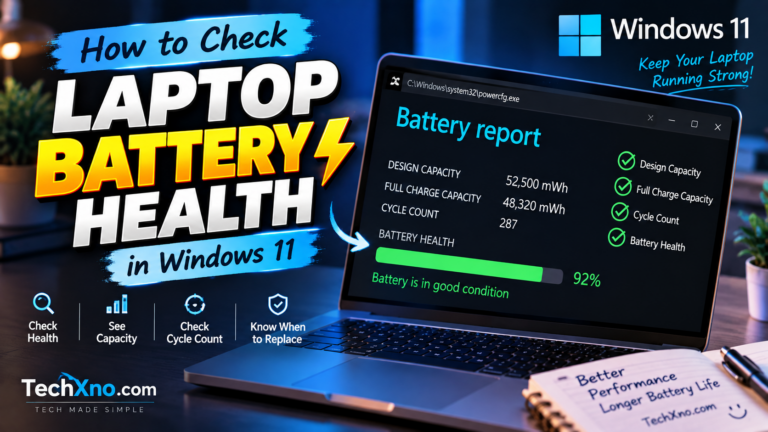
If you’re mainly concerned because your battery already seems worn, you can check its current condition using our How to Check Laptop Battery Health in Windows 11 guide.
And if the battery is losing charge unusually quickly, see Laptop Battery Draining Fast on Windows 11? 8 Easy Fixes.
Final Thoughts
If you want to limit battery charge to 80% in Windows 11, the most important thing to remember is that the setting usually comes from your laptop manufacturer rather than Windows itself.
Lenovo may offer Conservation Mode, Dell can provide custom charging controls on supported systems, ASUS has Battery Care features, while HP and other manufacturers may handle battery protection through BIOS settings or automatic battery-management systems.
If your laptop spends most of its life plugged in, enabling one of these features can be a sensible way to reduce the time the battery sits completely full.
But if you’re heading out for the day and need every bit of battery life you can get?
Charge it to 100%.
Your laptop is a tool, after all. Protecting the battery is useful — but not if it stops you from actually using the thing.
Frequently Asked Questions
Can Windows 11 automatically stop charging at 80%?
Windows 11 doesn’t provide one universal manual 80% charging limit that works across every laptop. On supported devices, charging limits and smart charging are generally controlled through manufacturer software, firmware, or device-specific features.
Is charging a laptop to 100% bad?
Charging to 100% doesn’t mean you’re immediately damaging the battery. Modern laptops include charging-management systems. However, reducing the amount of time a lithium-ion battery spends at a very high state of charge may help with long-term battery longevity, particularly for laptops that remain plugged in most of the time.
Should I keep my laptop battery at 80%?
If your laptop spends most of its time connected to a charger, enabling the manufacturer’s battery-care or charge-limit feature can make sense. If you regularly need maximum battery runtime away from a charger, charging to 100% may be more practical.
Why does my laptop stop charging at 80%?
Your laptop may have Battery Care, Conservation Mode, Smart Charging, or another battery-protection feature enabled. This doesn’t necessarily mean the charger or battery is faulty. Check your manufacturer’s battery settings before troubleshooting it as a charging problem.
Can I use third-party software to stop my laptop charging at 80%?
Only when the laptop itself provides supported hardware or firmware controls that the software can access. A generic Windows application cannot reliably create a charging limit on hardware that doesn’t support one. Manufacturer-provided tools are the safer option.