Wi-Fi Connected but No Internet in Windows 11? 12 Fixes

Your Windows 11 laptop shows full Wi-Fi bars. The network says Connected or Connected, secured. Everything looks normal—until you open Chrome, Edge or another app and discover that nothing can actually reach the internet.
Windows may even display No internet despite being successfully connected to your Wi-Fi router.
It sounds contradictory, but Wi-Fi and internet access are not the same thing.
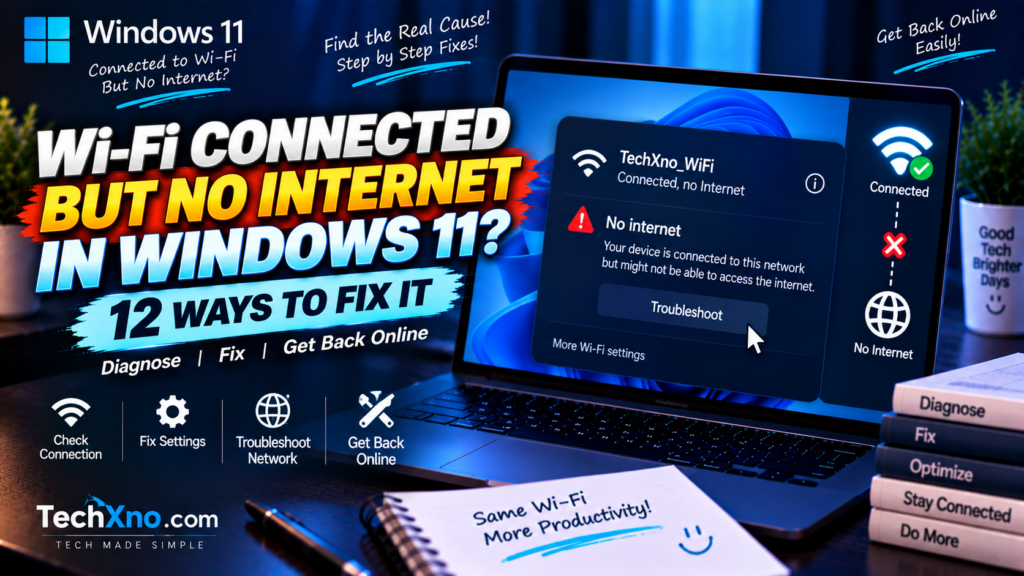
A successful Wi-Fi connection only means your Windows 11 PC has established a wireless connection with the router or access point. The router still needs a working connection to your internet provider, and your PC needs a valid IP configuration, gateway and DNS path to reach websites and online services.
That distinction makes this problem much easier to troubleshoot.
Instead of randomly resetting Windows settings, first determine where the connection stops working. Then apply the fix that matches the problem.
If your Wi-Fi is connected but there is no internet in Windows 11, work through these steps in order.
1. First Find Out Whether the Problem Is Your PC or Wi-Fi
Before changing anything in Windows, pick up your phone.
Connect it to the same Wi-Fi network and try opening a few websites.
There are two possible outcomes.
Other devices also have no internet
If your phone, tablet and other computers also fail on the same Wi-Fi, your Windows 11 laptop probably isn’t the problem.
The issue may instead be with your:
- Router
- Modem
- Fiber/ONT equipment
- Internet service provider
- Broadband connection
Restarting Windows repeatedly won’t repair an ISP outage.
Other devices work normally
This is much more interesting.
If your phone works perfectly on the same Wi-Fi but your Windows 11 laptop says Connected, no internet, the router clearly has internet access.
The problem is probably somewhere between Windows and that network.
Take the diagnosis one step further.
Turn on your phone’s mobile hotspot and connect the Windows PC to it temporarily.
If the laptop gets internet through the hotspot but not through your home Wi-Fi, its wireless hardware is at least capable of establishing a working internet connection. The problem may involve the saved home Wi-Fi profile, IP/DNS configuration, router compatibility or settings specific to that network.
If the laptop fails on multiple known-working networks, focus more heavily on Windows, the adapter, driver, VPN/proxy configuration or networking stack.
This two-minute test can save you from performing ten fixes you never needed.
2. Restart the PC, Modem and Wi-Fi Router Properly
Yes, restarting is basic.
It’s also worth doing before more invasive troubleshooting.
Start by restarting Windows normally:
Start → Power → Restart
Then power-cycle your networking equipment.
If you have a separate modem and router, unplug both from power. Wait approximately 30 seconds, reconnect the modem first, allow it to start, and then reconnect the router.
If you have one combined modem/router gateway, restart that device according to the manufacturer’s instructions.
Wait until its internet and Wi-Fi status lights stabilize before reconnecting the laptop.
This process can clear temporary router problems and establish a fresh connection with your internet provider.
If every device suddenly gets internet again, the problem wasn’t Windows.
If every other device works but your PC still doesn’t, continue.
3. Forget the Wi-Fi Network and Reconnect
Windows saves information about Wi-Fi networks you’ve previously joined.
Occasionally that saved profile can become problematic, especially after network configuration changes.
Open:
Settings → Network & internet → Wi-Fi → Manage known networks
Select the Wi-Fi network giving you trouble and click:
Forget
Before doing this, make sure you know the Wi-Fi password because Windows will remove the saved credentials.
Now reconnect normally from the Wi-Fi menu and enter the password again.
This creates a fresh connection profile rather than continuing to use the old saved configuration.
It’s particularly worth trying when your PC connects normally to a phone hotspot or other Wi-Fi network but refuses to get internet from one particular network.
If it still says No internet, secured, move on to the IP and DNS side.
4. Run the Windows 11 Network and Internet Troubleshooter
Before opening Command Prompt, give Windows’ built-in diagnostics a chance.
Microsoft’s current Windows guidance directs Windows 11 users toward the automated Network and Internet troubleshooter in the Get Help app, which can run diagnostics and attempt to resolve common networking problems.
Open Get Help and run the Network and Internet troubleshooter.
Follow the recommendations it provides.
This isn’t guaranteed to repair every network problem, but it can identify configuration issues without requiring you to manually modify advanced settings.
If Windows reports a specific problem, pay attention to it.
Messages involving:
- DNS
- Default gateway
- DHCP
- Network adapter
- IP configuration
can tell you which section of this guide deserves your attention.
Don’t immediately press every “Reset” button you can find.
A diagnosis is more useful than a blind reset.
5. Reset the Windows Network Stack and DNS Cache
If the Wi-Fi connection exists but Windows networking has become stuck or misconfigured, Microsoft’s network commands are a useful next step.
Search for:
Command Prompt
Right-click it and select:
Run as administrator
Then run these commands one at a time in this order:
netsh winsock reset
netsh int ip reset
ipconfig /release
ipconfig /renew
ipconfig /flushdns
Restart the computer afterward.
What are these commands actually doing?
netsh winsock reset resets the Winsock catalog used by Windows networking applications.
netsh int ip reset resets TCP/IP configuration.
ipconfig /release releases the PC’s current DHCP-assigned IP address.
ipconfig /renew asks the DHCP server—usually your router—for a new address.
ipconfig /flushdns clears the local DNS resolver cache.
Microsoft currently lists this sequence as a manual networking troubleshooting method.
Don’t copy random collections of twenty networking commands from forum posts just because they look technical. Start with the commands Microsoft itself documents for repairing common connectivity problems.
After restarting, reconnect and test several websites.
If nothing changes, we need to narrow the problem further.
6. Check Whether Windows Has a Valid IP Address
Your PC needs a valid IP address on the local network before it can communicate normally with the router.
Open Command Prompt and enter:
ipconfig
Find your Wireless LAN adapter Wi-Fi section.
Look at the IPv4 address.
Home networks commonly use private addresses beginning with ranges such as:
192.168.x.x
or:
10.x.x.x
Your network may use something different, so those examples are not universal.
What deserves special attention is an address beginning with:
169.254.x.x
Windows can automatically assign an address in that range when it hasn’t received a normal IPv4 address through DHCP.
If you see one, the problem may involve DHCP or communication between your PC and router.
Windows normally works well with automatic addressing on typical home networks.
Check:
Settings → Network & internet → Wi-Fi → Your network → IP assignment
For a normal DHCP-based home network, this will typically be set to:
Automatic (DHCP)
Microsoft recommends DHCP because it automatically assigns IP addresses and related network settings when the network supports it.
If you’ve previously entered a manual static IP without understanding your router’s configuration, switching back to the appropriate automatic configuration may solve the problem.
But don’t overwrite intentional static settings on a business, school, lab or managed network.
Those configurations may exist for a reason.
7. Check DNS If Wi-Fi Works but Websites Don’t Load
DNS translates names such as:
techxno.com
into IP addresses computers can use.
If your internet path works but DNS resolution fails, it can feel as though the entire internet is offline because websites no longer open by name.
Open Command Prompt and try:
ping 1.1.1.1
Then try:
ping google.com
Don’t treat ping alone as perfect proof—some servers or networks can block ICMP—but the comparison can provide a useful clue.
If connectivity to an IP address works while domain names consistently fail, DNS deserves investigation.
First run:
ipconfig /flushdns
If you’ve manually configured DNS before, check:
Settings → Network & internet → Wi-Fi → Your network → DNS server assignment
For many home users, automatic DNS supplied by the network is fine.
If you intentionally want to test another reputable resolver, examples include:
Cloudflare DNS
Preferred: 1.1.1.1
Alternate: 1.0.0.1
or:
Google Public DNS
Preferred: 8.8.8.8
Alternate: 8.8.4.4
Changing DNS should be a targeted troubleshooting step, not the first thing you do whenever Wi-Fi stops working.
If every device on your network has no internet, switching DNS on one laptop probably won’t fix a disconnected modem or ISP outage.
8. Check VPN and Proxy Settings
VPNs and proxy configurations intentionally change how your internet traffic reaches its destination.
When they malfunction, Windows can remain connected to Wi-Fi while internet applications stop working properly.
If you use a VPN, disconnect it normally and test the connection.
Then open:
Settings → Network & internet → Proxy
If you don’t intentionally use a manual proxy, check that an unexpected manual proxy hasn’t been configured.
This is especially worth investigating when:
- Browsers suddenly stop loading
- The problem started after installing VPN software
- Only certain applications connect
- Windows shows internet access but websites behave strangely
However, be careful on work and school computers.
Organizations may deliberately configure VPNs, proxies, certificates and security software. Don’t disable managed security settings simply because a troubleshooting guide told you to.
If it’s an organization-managed device, contact the appropriate administrator instead.
9. Disable and Re-Enable the Wi-Fi Adapter
Sometimes the wireless adapter itself needs to be restarted without rebooting the entire PC.
Open:
Settings → Network & internet → Advanced network settings
Find the Wi-Fi network adapter.
Disable it, wait several seconds and enable it again.
Reconnect to your network and test the internet.
You can also inspect the adapter through:
Device Manager → Network adapters
Find the wireless adapter—commonly from Intel, Realtek, MediaTek, Qualcomm or another manufacturer.
If Windows shows an error icon next to it, open its properties and review the device status.
If disabling and re-enabling the adapter fixes the connection only temporarily and the problem repeatedly returns, driver or power-management issues may deserve closer attention.
10. Update or Reinstall the Wi-Fi Driver
Drivers allow Windows to communicate correctly with the wireless hardware.
A corrupted, incompatible or problematic Wi-Fi driver can create situations where the PC detects networks and appears connected but doesn’t behave correctly.
Start with:
Settings → Windows Update
Check for relevant updates.
You can also visit your laptop or motherboard manufacturer’s official support page and look for the appropriate network/WLAN driver for your exact model.
For laptops, the manufacturer’s tested driver is often a sensible place to start.
If the problem began after a driver or Windows update, reinstalling the adapter can also help.
Open:
Device Manager → Network adapters
Right-click the Wi-Fi adapter and choose:
Uninstall device
Before doing this, it’s wise to have the correct driver available as a backup—especially when this is your only internet-connected computer.
Restart Windows.
Windows will normally detect the hardware and reinstall the adapter.
Microsoft also recommends this approach when earlier connectivity fixes don’t work and specifically suggests obtaining a backup driver from the PC manufacturer’s website beforehand.
Avoid downloading “Wi-Fi driver updater” programs from random websites.
When your networking driver is already broken, installing unknown software that promises to fix all drivers is an unnecessary additional risk.
11. Check the Router and ISP If Multiple Devices Have No Internet
Return to the test from the beginning.
What if your laptop, phone, tablet and television all connect to Wi-Fi but none of them can access the internet?
That’s a very different problem.
Log in to the router’s management interface using the manufacturer’s instructions and check its internet/WAN status.
Look at the modem, fiber ONT or gateway indicators as well.
You may have:
- An ISP outage
- A disconnected WAN link
- Authentication problem
- Fiber/broadband fault
- Modem issue
- Router configuration problem
Check your internet provider’s official outage/status information or contact support if necessary.
Don’t factory-reset your router casually.
A factory reset can erase ISP credentials, custom Wi-Fi settings, port forwarding, parental controls and other configuration. Restarting and factory resetting are completely different actions.
If every device is offline, troubleshoot the shared network before dismantling Windows settings on one computer.
12. Use Windows Network Reset Only as a Last Step
Windows 11 includes a more comprehensive Network reset option.
Open:
Settings → Network & internet → Advanced network settings → Network reset
Then choose:
Reset now
This removes installed network adapters and their settings. After Windows restarts, the adapters are reinstalled and network settings return to their defaults.
That can solve stubborn networking problems.
But Microsoft specifically positions Network reset as a later/last troubleshooting step, and there’s a reason.
After a network reset, you may need to reinstall or reconfigure networking software such as VPN clients or virtual network components.
That’s why this article doesn’t begin with:
“Just reset the network.”
First identify whether the problem is the router, ISP, saved Wi-Fi profile, DHCP/IP configuration, DNS, proxy/VPN, adapter or driver.
Use the big reset when the targeted fixes have failed.
That’s troubleshooting—not gambling.
Final Thoughts
When Windows 11 says Wi-Fi connected but no internet, don’t assume the Wi-Fi adapter is broken.
Your PC has already done one important thing successfully: it connected to the wireless network.
The real question is what happens after that connection.
Start by checking another device on the same Wi-Fi.
If every device is offline, investigate the router, modem and ISP.
If only the Windows 11 PC is affected, connect it to another network or phone hotspot. If that works, focus on the original Wi-Fi profile, DHCP/IP assignment, DNS and router compatibility.
Then move through the fixes logically: reconnect the network, run Windows diagnostics, renew the IP configuration, flush DNS, inspect VPN/proxy settings, restart the adapter and check its driver.
Save Network reset for near the end, not the beginning.
The fastest way to solve a networking problem isn’t to try the largest number of fixes.
It’s to figure out which part of the connection is actually broken.
Frequently Asked Questions
Why does Windows 11 say connected but no internet?
“Connected” can mean your computer successfully joined the local Wi-Fi network, while internet access beyond the router is unavailable. Causes can include an ISP/router problem, invalid IP configuration, DNS failure, VPN or proxy issues, or a network-adapter problem.
Why does Wi-Fi work on my phone but not my Windows 11 laptop?
If the phone works on the exact same Wi-Fi network, the internet connection and router are at least functioning for that device. Focus troubleshooting on the laptop’s saved Wi-Fi profile, IP/DNS settings, VPN/proxy configuration, network adapter and driver.
Why does my laptop work with a mobile hotspot but not home Wi-Fi?
That suggests the laptop can establish a working wireless internet connection, while something specific to the interaction with your home network is failing. Forget and reconnect to the home network, then investigate DHCP/IP, DNS and router compatibility.
What does a 169.254 IP address mean in Windows?
An IPv4 address beginning with 169.254 commonly indicates that Windows assigned itself an automatic private address because it didn’t obtain the expected IPv4 configuration from DHCP. Check the router/DHCP connection and your PC’s IP configuration.
How do I reset the internet connection using CMD in Windows 11?
Microsoft documents networking commands including netsh winsock reset, netsh int ip reset, ipconfig /release, ipconfig /renew, and ipconfig /flushdns. Run them from an elevated Command Prompt and restart when appropriate.
Can DNS cause Wi-Fi to be connected but websites not to load?
Yes. DNS problems can prevent domain names from resolving even when some underlying network connectivity remains. Flush the DNS cache and verify your DNS configuration before assuming the Wi-Fi hardware is defective.
Will Windows 11 Network Reset delete my personal files?
Network Reset targets network adapters and networking settings rather than your personal documents, but it can require you to reconfigure networking software and settings afterward. That’s why it should be used after simpler troubleshooting steps.
Should I reinstall Windows to fix a Wi-Fi internet problem?
Usually not. Reinstalling Windows is far too aggressive for an ordinary connectivity issue. Diagnose the router/ISP, Wi-Fi profile, IP/DNS configuration, adapter and driver first. Most connection problems can be investigated without reinstalling the operating system.