Laptop Battery Draining Fast on Windows 11? 8 Easy Fixes

You charged your laptop to 100%, unplugged it, opened a few Chrome tabs… and somehow you’re already sitting at 70%.
Yeah, that’s annoying.
If your laptop battery draining fast on Windows 11, don’t immediately blame the battery. Sometimes the battery really is getting old, but quite often something else is quietly eating up the charge.
It could be a background app, high screen brightness, Windows doing something behind the scenes, or even your laptop refusing to sleep properly.
So before you start searching for a replacement battery, give me a few minutes. Let’s figure out where that battery is actually going.
1. Check Which Apps Are Draining Your Battery in Windows 11
Don’t start changing ten different settings at once. If we do that, we’ll never know what actually caused the problem.
Windows 11 already keeps track of battery usage for us.
Go to:
Settings → System → Power & battery → Battery usage
Now look at the apps using the most battery.
Chrome being near the top after you’ve spent four hours watching YouTube? Fair enough.
But an app you barely remember opening using a huge chunk of your battery? That’s worth investigating.
Browsers with dozens of tabs, game launchers, cloud-sync apps, Discord, editing software and other programs can continue working in the background even when you’re not actively using them.
You can also press Ctrl + Shift + Esc to open Task Manager.
Check the CPU and GPU columns. If you’re sitting on the desktop doing basically nothing and some random app is constantly using resources, you’ve probably found at least part of the problem.
Quick tip: Don’t end every process you don’t recognize. Some of them are important Windows services or hardware drivers.
2. Change Windows 11 Power Settings to Reduce Battery Drain
Your laptop might simply be working harder than it needs to.
Windows 11 lets you balance performance and battery life through its power settings.
Open:
Settings → System → Power & battery
Look for Power mode.
If you’re unplugged and only browsing, studying, watching videos or working on documents, you probably don’t need maximum performance.
Choose a more power-efficient mode when you’re running on battery.
You can also enable Energy saver.
Energy saver reduces some background activity and power usage, which can help when you need your laptop to survive a few more hours away from the charger.
Will changing one setting magically double your battery life?
Probably not.
But combined with the other fixes below, it can make a noticeable difference.
3. Reduce Screen Brightness and Refresh Rate to Save Battery
Your screen is easy to forget about, but it can be one of the biggest battery users on a laptop.
First, check the brightness:
Settings → System → Display → Brightness
If you’re sitting indoors with the screen at 100%, try lowering it to a comfortable level.
You don’t need to make your laptop look like a dark cave. We’re just trying to stop wasting power you aren’t benefiting from.
Now there’s another setting people often miss: refresh rate.
Modern laptops can have 90Hz, 120Hz, 144Hz or even faster displays. They look wonderfully smooth, but that smoothness isn’t completely free.
Go to:
Settings → System → Display → Advanced display
Check Choose a refresh rate.
If your laptop is running at 120Hz or 144Hz, try using a lower refresh rate when you’re away from a charger.
For browsing, writing or studying, you may prefer the extra battery life.
Some supported laptops also have Dynamic Refresh Rate, which allows Windows to adjust the refresh rate depending on what you’re doing.
4. Stop Background Apps Draining Your Laptop Battery
This problem slowly builds up without you noticing.
You install an app.
It adds itself to startup.
You install another one.
Same thing.
A few months later, you turn on your laptop and a small army of programs wakes up alongside Windows.
Press:
Ctrl + Shift + Esc
Then open Startup apps.
Go through the list and disable programs you don’t need starting automatically.
Game launchers are a good example. If you play a game twice a month, does its launcher really need to sit in the background every day?
Probably not.
Cloud storage, messaging apps and other utilities can also contribute to background battery usage.
Just don’t randomly disable security software, drivers or hardware-related utilities because their names look unfamiliar.
If you’re unsure what something does, check it before disabling it.
5. Fix Battery Draining Fast After a Windows 11 Update
Did your battery life suddenly become terrible after Windows updated?
Don’t ignore the timing.
Go to:
Settings → Windows Update
Check whether Windows is still downloading or installing anything.
After a major update, your laptop may also spend some time indexing files, updating applications and doing other work in the background.
That means higher CPU, disk and sometimes network activity — all of which can use more battery.
Restart the laptop once and give Windows some time to finish its background work.
You can also open Task Manager and check whether something is constantly using the CPU or disk.
If the battery keeps draining fast after a Windows 11 update for several days, check your laptop manufacturer’s official support page.
Look for updates related to your exact model, particularly:
- BIOS/UEFI
- Chipset
- Graphics
- Power management
And please don’t install one of those suspicious “37 DRIVERS ARE OUTDATED — FIX NOW!” programs.
Windows Update and your laptop manufacturer’s official support site are much safer places to start.
6. Fix Windows 11 Laptop Battery Draining While Sleeping
This one is slightly different.
Maybe your laptop works perfectly while you’re using it, but the battery disappears overnight.
For example:
You close the lid at 82% before going to sleep.
The next morning?
51%.
That’s not the same problem as your display using too much power while you’re working.
Your laptop may still be doing something while you think it’s sleeping.
Here’s an easy test.
Note your battery percentage before closing the lid. Leave the laptop alone for a few hours and check the percentage when you return.
If it’s losing a lot of battery while sleeping, we need to investigate sleep behavior.
Open Windows Terminal or Command Prompt and run:
powercfg /a
This shows which sleep states your laptop supports.
On compatible Modern Standby systems, you can also use:
powercfg /sleepstudy
Windows can generate a report showing activity that happened while your laptop was supposed to be sleeping.
Don’t worry if that sounds a little technical.
The important thing is figuring out when the battery drain happens.
Battery disappearing while you’re actively using the laptop and battery disappearing while the lid is closed are two different problems.
7. Check Your Laptop Battery Health in Windows 11
Okay, what if you’ve checked everything above and nothing looks suspicious?
Now it’s time to look at the battery itself.
Laptop batteries don’t stay new forever.
Every time you charge and use your laptop, the battery gradually ages. After enough time, it simply can’t hold as much energy as it could when it left the factory.
Luckily, Windows 11 can show us this without installing another app.
Open Command Prompt or Windows Terminal and type:
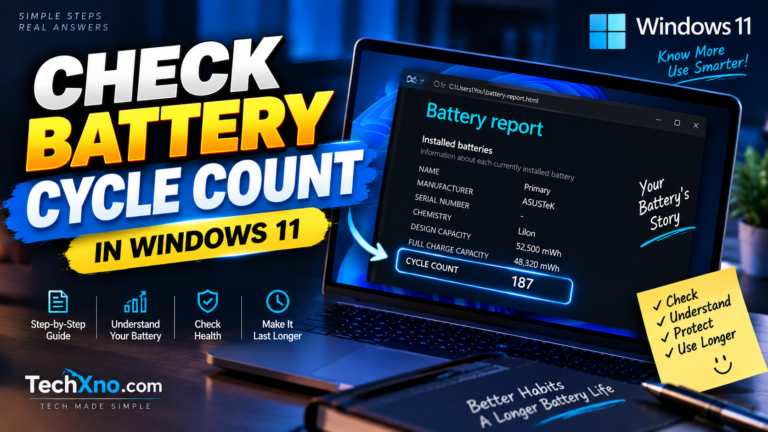
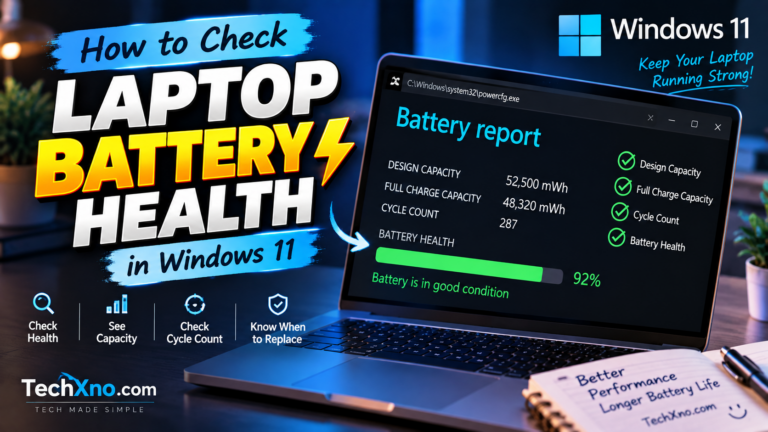
powercfg /batteryreport
Press Enter.
Windows will generate a battery report and tell you where the file has been saved.
Open the report and look for two important numbers:
Design Capacity — roughly how much charge your battery was designed to hold when it was new.
Full Charge Capacity — roughly how much charge it can hold now.
If those numbers are fairly close, your battery may still be in decent condition.
But if there’s a huge difference between them, battery wear could explain why you’re constantly searching for your charger.
We’ve already covered this properly in our guide:
How to Check Laptop Battery Health in Windows 11
That guide shows you how to generate the battery report, understand the numbers and estimate the condition of your laptop battery.
If your battery health still looks good, I’d keep investigating Windows settings and background activity before replacing anything.
8. How to Make Your Windows 11 Laptop Battery Last Longer
Once you’ve found the main problem, a few small changes can help your battery last longer every day.
Keep your screen brightness comfortable rather than maxed out. Close games and heavy applications when you’re finished with them. Disconnect USB devices you don’t need and turn Bluetooth off when nothing is connected.
You can also open:
Settings → System → Power & battery → Energy recommendations
Windows may suggest a few power-saving changes based on your current settings.
And remember, how you use your laptop matters.
If your battery lasts five or six hours while browsing but gets destroyed in 90 minutes while gaming, that doesn’t automatically mean the battery is bad.
Gaming can push the CPU, GPU and display much harder.
What I’d be more concerned about is a laptop that used to last five hours doing normal work and suddenly struggles to make it through two.
That’s when something is worth investigating.
Final Thoughts
If your laptop battery is draining fast on Windows 11, don’t start changing every setting you can find.
Start with Battery usage.
See what’s actually consuming the power.
If nothing looks strange there, check your power mode, screen settings, startup apps, Windows updates and whether the battery drain happens while your laptop is sleeping.
Only after that would I start blaming the physical battery.
Frequently Asked Questions
Why is my laptop battery draining so fast all of a sudden?
If your laptop battery suddenly starts draining quickly, check background apps, recent Windows updates, CPU and GPU usage, display settings and your power mode. If everything looks normal, check your battery health to see whether its capacity has degraded.
Why does my laptop battery drain when I’m not using it?
If the battery drains while the laptop is sitting unused, background activity may be responsible. If it happens with the lid closed, your laptop may also be consuming more power than expected during sleep.
Why is my Windows 11 battery draining fast after an update?
Windows may temporarily perform additional background work after an update. Restart your laptop, let pending updates finish and check Task Manager for unusually high resource usage. If the problem continues, check for official driver or BIOS updates for your laptop.
How do I know if my laptop battery needs replacing?
Generate a Windows battery report using powercfg /batteryreport. Compare Full Charge Capacity with Design Capacity. If your battery has lost a large amount of its original capacity and real-world runtime is poor, battery wear may be the main problem. Because if Chrome is quietly murdering your battery in the background, buying a new battery isn’t exactly going to teach Chrome any manners.