
Android Battery Draining Fast Even When Not in Use? 10 Fixes

You charge your Android phone before going to bed, leave it untouched on the table, and wake up expecting roughly the same battery level. Instead, 15%, 20% or sometimes considerably more has disappeared overnight—even though you weren’t actually using the phone.
That kind of battery drain can be especially confusing because there’s no obvious culprit. The screen was off. You weren’t watching videos, playing games or using navigation. So what exactly was consuming the battery?
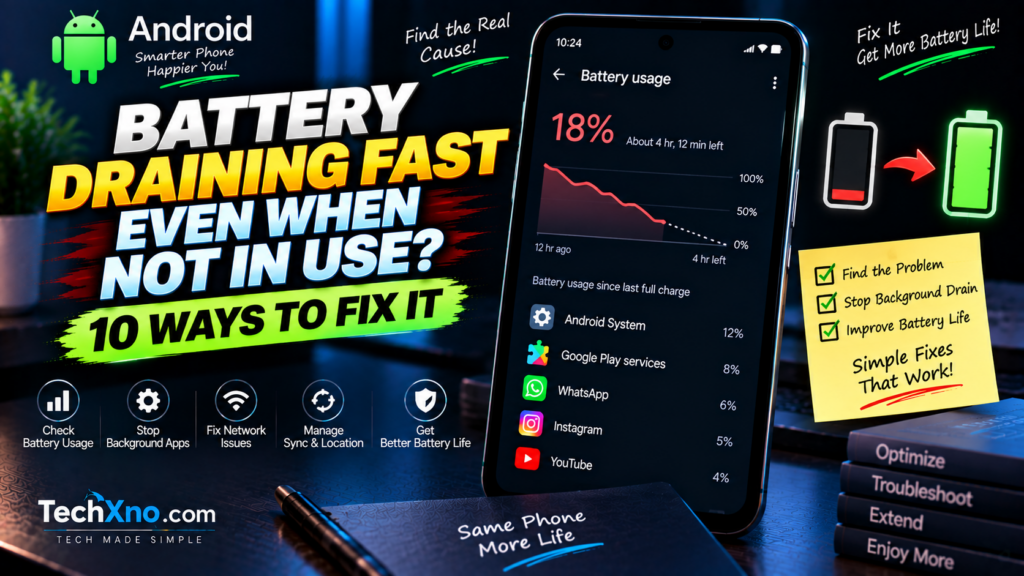
The answer is that screen-off doesn’t mean powered-off. Android can continue receiving notifications, synchronizing accounts, maintaining mobile and Wi-Fi connections, checking location, processing app activity, backing up files and performing system tasks while the display is off. Usually these processes are managed efficiently, but a misbehaving app, weak mobile signal, recent software update, excessive synchronization or an aging battery can make idle drain much more noticeable.
If your Android battery is draining fast even when not in use, don’t start disabling every feature on the phone. First identify what’s using the power, then fix the actual cause.
1. Check Battery Usage Before Changing Any Settings
The most useful first step is also the one people often skip.
Open:
Settings → Battery → Battery usage
The exact names and layout vary between Pixel, Samsung, OnePlus, Xiaomi, Motorola, Nothing, Vivo, OPPO, Realme and other Android phones, but most provide some form of battery-usage breakdown.
Look at which apps and system components consumed battery during the period when you weren’t actively using the phone.
You’re searching for something that doesn’t match your behavior.
Suppose WhatsApp used 5% during a night when you received dozens of messages and had media backups running. That might be explainable. But if an application you barely opened consumed a surprisingly large share of battery and shows substantial background activity, it’s worth investigating.
Google’s current Pixel guidance recommends checking Battery → Battery usage → View by apps and reviewing applications with high background or overall battery usage. On supported devices, Google also provides Battery diagnostics, including a “Battery draining too quickly” check.
Don’t obsess over one percentage in isolation. Battery-usage statistics are most useful when compared with what actually happened on the phone.
The question isn’t simply:
“Which app is at the top?”
It’s:
“Why was this app doing so much when I wasn’t using the phone?”
That gives you somewhere useful to start.
2. Restrict Apps With Unusual Background Battery Usage
Once you’ve identified a suspicious application, check its battery settings.
On many Android devices, you can reach them through something similar to:
Settings → Apps → [App name] → Battery
or:
Settings → Battery → Battery usage → [App name]
The available choices differ between manufacturers, but Android may allow an application to be optimized, unrestricted or restricted in the background.
Don’t automatically restrict every app.
Messaging applications, alarms, fitness trackers, VPNs, smart-home tools and other software may legitimately need background activity. Aggressively restricting them can delay notifications, interrupt synchronization or prevent features from working correctly.
Instead, focus on apps showing unusually high background consumption.
Google recommends keeping battery optimization enabled for apps generally and notes that restricting an app can affect how it functions or delay notifications.
If one recently installed application suddenly appears responsible for excessive idle drain, try updating it first. If the problem continues and you don’t need the application, uninstalling it is a much cleaner solution than repeatedly force-stopping it every few hours.
And don’t make a habit of manually swiping every app out of Recent Apps. Android is designed to manage applications and memory itself; constantly closing everything isn’t a magic battery-life button.
Fix abnormal background behavior rather than turning normal Android behavior into the enemy.
3. Check Whether Weak Mobile Signal Is Draining the Battery
Apps aren’t the only things consuming power while your screen is off.
Your phone is still a phone.
It needs to stay connected to a mobile network, and poor reception can make that more demanding. If the signal inside your bedroom, office, basement or another location is consistently weak, the phone may spend more effort maintaining or searching for connectivity.
This is particularly worth investigating when the battery drains heavily overnight in one location but behaves normally elsewhere.
Compare the signal strength where the drain happens. If you frequently see very weak reception or the phone repeatedly moves between network states, connectivity may be contributing to the problem.
Dual-SIM users should also consider whether both SIMs have reliable service. Keeping multiple mobile connections active can affect battery consumption, especially when one network has poor coverage.
A useful test is to compare overnight drain under normal conditions with another controlled night where connectivity is different—for example, using Airplane mode when you genuinely don’t need calls, messages or mobile connectivity while sleeping.
If idle drain falls dramatically during that test, you have an important clue.
Don’t leave Airplane mode enabled simply because an article told you it’s “the fix.” That prevents connectivity and may be completely impractical.
Use it diagnostically.
The point is to discover whether network activity is responsible, not to transform your smartphone into an expensive alarm clock.
4. Review Location, Bluetooth, Hotspot and Nearby Features
Modern Android phones contain several radios and sensors that can remain available while the screen is off.
Bluetooth itself isn’t automatically a huge battery killer, and location services are far more intelligently managed than they were on early smartphones. Still, applications repeatedly requesting location or accessories maintaining active connections can contribute to background usage.
Open Android’s permission controls and review which applications have access to your location.
Pay particular attention to apps with permission to access location all the time rather than only while you’re actively using them.
Ask whether that access is necessary.
A navigation or safety application may have a legitimate reason. A random shopping app probably deserves more scrutiny.
Also make sure you haven’t accidentally left features such as mobile hotspot running. A hotspot can consume meaningful power even though you aren’t actively touching the phone.
Connected Bluetooth devices, continuous fitness tracking, nearby-device services and location-dependent automation can all have legitimate uses, so again, don’t disable everything indiscriminately.
A smartphone with every smart feature disabled may have wonderful standby time.
It may also stop being particularly smart.
Review the features you actually use and remove unnecessary background access rather than applying a blanket shutdown.
5. Check Account Sync, Cloud Backups and Photo Uploads
Sometimes “battery drain while doing nothing” actually means the phone was doing quite a lot—you just weren’t watching it.
Google Photos may be backing up videos. A cloud-storage app may be synchronizing files. WhatsApp may be performing a backup. Email accounts may be synchronizing messages. Another application may be uploading media or downloading content in the background.
Large backup jobs can use network, storage and processor resources simultaneously.
If the battery problem started after you imported thousands of photographs, restored a phone, added a new account or enabled a backup service, check whether synchronization is still taking place.
Open the relevant applications and look at their backup or sync status.
If Google Photos is uploading 40 GB of videos, you may have found at least part of the explanation.
You don’t necessarily need to disable backups permanently. Backups are valuable, especially for irreplaceable photos and documents.
Instead, allow large initial backup jobs to complete while the phone is connected to reliable Wi-Fi and power where practical.
Then observe whether idle battery life returns to normal.
A temporary workload isn’t the same thing as a permanent battery problem.
6. Battery Draining After an Android Update? Give It Some Time
This is particularly important because battery complaints often appear immediately after a major Android or system update.
You install the update, restart the phone, notice worse battery life the following day and conclude:
“The update destroyed my battery.”
Sometimes an update can introduce a genuine bug. But higher consumption immediately after an update isn’t automatically evidence of one.
Google currently explains that a Pixel may temporarily use more battery after a software update because the phone is downloading, optimizing and getting the new software fully running. Google says that if unusual drain continues after a few days, further troubleshooting may be appropriate.
The same general principle is useful when evaluating other Android devices, although the exact optimization behavior varies by manufacturer.
After an update, make sure your applications are also current:
Google Play Store → Profile → Manage apps & device
Install available updates, restart the phone and observe battery behavior over the next few normal charge cycles rather than judging everything from the first few hours.
If battery drain remains severe after several days, then start investigating specific apps and system activity more closely.
Also search your phone manufacturer’s official support information for known issues affecting your exact model and software version.
“Battery drain after update” can mean temporary optimization.
It can also mean a genuine software issue.
Time and battery-usage data help you tell the difference.
7. Keep Adaptive Battery and Battery Optimization Enabled
Android includes battery-management systems specifically designed to control unnecessary power usage.
On supported devices, Adaptive Battery learns how you use applications and helps prioritize resources accordingly. Google currently recommends keeping Adaptive Battery and battery optimization enabled for best results on Pixel devices.
Search your phone’s Settings for:
Adaptive Battery
and:
Battery optimization / App battery usage
because the exact menu location varies by Android version and manufacturer.
If you’ve previously followed a “make Android faster” tutorial that told you to make numerous applications Unrestricted, revisit those changes.
Allowing every application unrestricted background activity can work against the battery-management features Android is trying to provide.
At the same time, don’t put every app into the most aggressive restricted state. Applications that genuinely need reliable background activity may stop delivering notifications or performing expected tasks.
The default optimized behavior is generally the sensible starting point.
Make exceptions because you have a reason—not because somebody on YouTube told you that disabling all optimization somehow “unlocks” your phone.
8. Restart the Phone and Update Problem Apps
A simple restart isn’t exciting enough to make a dramatic thumbnail, but it remains useful troubleshooting.
A process can occasionally become stuck, an application can behave incorrectly, or a system component can continue consuming resources longer than expected.
Restart the phone normally and then monitor idle drain again.
Next, update Android:
Settings → System → Software update
or your manufacturer’s equivalent menu.
Then update your apps through Google Play.
Google includes restarting the device, installing Android updates and updating applications among its current battery-drain troubleshooting steps.
If the problem began immediately after installing one particular application, that’s another useful clue.
Check its recent reviews for similar reports, update it if an update is available, and consider temporarily uninstalling it to see whether standby battery life improves.
Troubleshooting works best when you change one meaningful variable at a time.
If you uninstall eight apps, disable Bluetooth, turn off location, change five sync settings and reset network settings simultaneously, your battery might improve—but you’ll have no idea which change actually fixed it.
That makes the problem much harder to understand if it returns.
9. Check Whether the Battery Itself Has Aged
Software gets blamed for battery drain even when the battery itself has simply lost capacity.
Lithium-ion batteries are consumable components. As they age through time, charge cycles, heat exposure and usage, they gradually hold less energy than they did when new.
Imagine your phone originally had a 5,000 mAh battery.
The percentage indicator can still say 100%, but that doesn’t necessarily mean the aging battery can physically store exactly as much energy as it could when the phone was new.
Signs that battery condition may be contributing include noticeably shorter runtime across almost every type of usage, unexpected shutdowns, rapidly changing percentages, poor endurance despite normal battery-usage statistics, or a device that’s several years old and heavily used.
Some manufacturers provide battery diagnostics or health information in their own support or device-care tools. Pixel devices also provide battery diagnostics on supported models.
If the phone is otherwise working well, replacing a degraded battery through an appropriate repair provider can sometimes make far more sense than replacing the entire device.
But there’s one battery symptom you should never treat as ordinary degradation:
Swelling.
If the phone’s back or screen is separating, the device appears swollen, you notice unusual heat, odor or physical battery damage, stop charging and using the device and seek qualified service. Don’t press a swollen phone back together or keep charging it overnight to “see what happens.”
That’s no longer a battery-life optimization problem.
It’s a hardware safety problem.
10. Measure Overnight Battery Drain Instead of Guessing
If your main complaint is that your phone loses battery overnight, run a simple test.
Charge the phone to a known percentage before bed and write it down. Note the time and whether Wi-Fi, mobile data, Bluetooth, location, Always-On Display and other relevant features are enabled.
In the morning, check the remaining percentage before spending 20 minutes scrolling notifications.
Then open Battery usage and look at what happened during the night.
Repeat the test after fixing the most suspicious cause.
For example, if one social application shows excessive background activity, restrict or remove it and compare the next night’s result. If network reception seems responsible, perform a controlled Airplane-mode test on a night when you don’t need connectivity.
Don’t obsess over achieving literally 0% overnight drain. A powered-on smartphone still performs legitimate background work.
You’re looking for abnormal or unexplained drain and a repeatable improvement after addressing its cause.
If the phone continues losing a very large amount of battery while idle and Battery usage provides no convincing explanation, consider your manufacturer’s diagnostic tools or support options.
A factory reset exists as a final software troubleshooting step, but it should not be the first thing you try. Google also places factory reset among advanced battery troubleshooting and warns that it removes device data, so a proper backup is essential beforehand.
Find the cause first whenever possible.
Factory resetting a phone every time an app behaves badly is a little like rebuilding your house because one light bulb flickers.
Final Thoughts: Fix Android Battery Drain While the Phone Is Idle
If your Android battery is draining fast even when you’re not using the phone, the most important thing is to separate normal standby consumption from abnormal background activity.
Start with Settings → Battery → Battery usage. Look for apps consuming far more background power than your actual usage would justify. Then investigate network signal, location access, synchronization, cloud backups, recent software updates and battery optimization settings.
If the problem appeared immediately after an Android update, don’t judge battery life from the first few hours alone. Some post-update work can temporarily increase consumption, and Google explicitly notes this behavior for Pixel devices.
And if nothing in software explains the drain, consider the physical battery. An older battery can’t be restored to new condition by clearing cache, disabling animations or installing a “battery saver” app.
The best battery troubleshooting doesn’t begin with turning everything off.
It begins with finding out what was actually using the battery while you weren’t.
Once you know that, the fix becomes much less mysterious.
Frequently Asked Questions About Android Battery Drain
Why is my Android battery draining when I’m not using the phone?
Even with the screen off, Android may continue receiving notifications, maintaining network connections, synchronizing accounts, backing up files and allowing permitted background activity. Abnormally high drain can come from a problematic app, weak mobile signal, excessive synchronization, software issues or an aging battery.
How do I find which app is draining my Android battery?
Open Settings → Battery → Battery usage or the equivalent menu provided by your phone manufacturer. Compare each application’s battery consumption and background activity with how much you actually used it.
Why is my phone losing so much battery overnight?
Possible causes include background apps, poor mobile reception, cloud/photo backups, account synchronization, Always-On Display and other active services. Measure the battery before and after sleep and check Battery usage in the morning to identify what was active.
Can an Android update cause temporary battery drain?
Yes. Google specifically notes that Pixel phones can temporarily consume more battery after software updates while the new software is downloaded, optimized and fully set up. Persistent unusual drain after several days deserves further investigation.
Should I restrict every Android app from running in the background?
No. Aggressive restrictions can delay notifications or stop legitimate background features from working. Keep normal battery optimization enabled and focus restrictions on applications showing genuinely unnecessary background usage.
Does closing all recent apps save battery?
Not necessarily. Android manages applications and memory automatically. Constantly closing every app isn’t a reliable solution for abnormal battery drain. It’s more useful to identify an application showing excessive background activity and address that specific problem.
Can a weak mobile signal drain my phone battery?
It can contribute to increased power consumption because the phone must maintain cellular connectivity. If idle drain happens primarily in an area with poor reception, network conditions are worth investigating.
How do I know if my phone battery needs replacing?
A significantly older phone with consistently poor runtime, unexpected shutdowns or abnormal percentage behavior may have a degraded battery. Use manufacturer diagnostics where available and consider professional battery replacement if the device is otherwise worth keeping.
Should I factory reset my Android phone for battery drain?
Treat a factory reset as an advanced last-resort troubleshooting step because it removes device data. Check battery usage, apps, updates, synchronization, network conditions and battery health first, and create a proper backup before resetting.