How to Use NotebookLM to Turn PDFs Into Notes, Quizzes & Study Guides

Imagine you have an exam next week and your study material consists of six PDFs, three sets of lecture notes, a 90-page research paper and a YouTube lecture you promised yourself you’d watch two weeks ago. Reading everything from beginning to end is possible, but figuring out what matters, connecting the topics and then turning all of it into useful revision material can take almost as much time as studying itself.
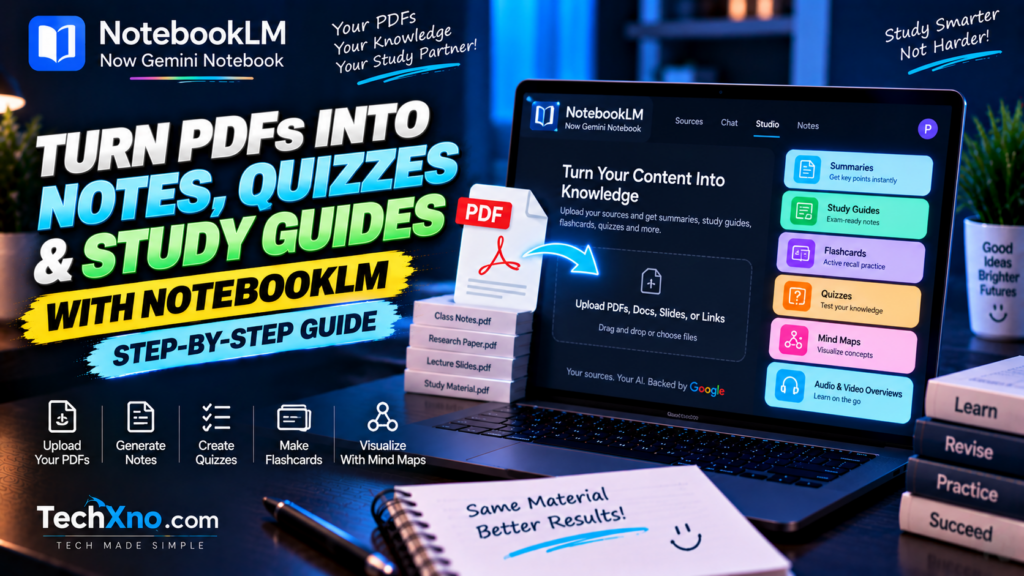
That’s exactly the kind of problem Google’s NotebookLM was designed to tackle. The tool can work with the sources you provide and help turn them into summaries, notes, study guides, flashcards, quizzes, mind maps and even audio or video-style overviews. More importantly, its answers can include citations that take you back to the underlying source, which makes it particularly useful when you’re studying from specific material rather than asking a general AI chatbot about an entire subject.
There’s one important change to know in 2026: Google renamed NotebookLM to Gemini Notebook in July 2026. It’s still the same standalone product and the NotebookLM name remains widely recognized, so you’ll see both names used in this guide.
If you’re wondering how to use NotebookLM for studying, here’s a practical workflow that starts with a PDF and ends with something you can actually revise from.
1. Create a Notebook and Add Your PDFs or Study Material
Start by opening Gemini Notebook, formerly NotebookLM, and signing in with your Google account. Create a new notebook for the subject or project you’re working on.
The word notebook is important here. Instead of treating the tool like one endless AI conversation, think of each notebook as a workspace built around a particular collection of sources.
For example, if you’re preparing for exams, you might create separate notebooks for:
Physics — Semester 2
Organic Chemistry
Operating Systems
Economics — Final Exam
Keeping unrelated material separate makes it easier to ask precise questions later.
Once you’ve created the notebook, add the material you actually want to study. PDFs are an obvious starting point, but NotebookLM/Gemini Notebook supports a broader source-based workflow. Depending on the current interface and available features, your notebook can incorporate documents and other supported sources rather than forcing you to manually copy everything into a chat window.
For a student, that could mean adding lecture PDFs, your own notes, research papers, presentations and other course material covering the same topic.
Don’t upload 40 unrelated files simply because you can. A focused collection of good sources usually gives you a cleaner study environment than a digital cupboard containing everything you’ve downloaded since first year.
Once the sources are ready, the real advantage begins: you can work across the material instead of opening each PDF individually.
2. Ask NotebookLM to Explain and Summarize Your PDFs
Before generating flashcards or quizzes, first make sure you understand what the material actually contains.
Start broad.
For example, ask:
“Give me an overview of these sources. Identify the main topics, important concepts and the relationship between them.”
Then narrow it down:
“Explain Chapter 4 in simple language without removing the important technical terminology.”
Or:
“What are the five concepts from these PDFs that I need to understand before learning the later chapters?”
This is where NotebookLM’s source-grounded approach becomes valuable. Its chat experience is designed around the material you’ve added, and responses can provide citations pointing back to supporting passages in those sources.
Don’t ignore those citations.
If NotebookLM tells you something that seems surprising, particularly a number, definition, conclusion or technical claim, open the cited source and check the surrounding context.
AI can help you navigate a document much faster, but it shouldn’t turn verification into an extinct skill.
For difficult material, try asking the same question at different levels. You might begin with:
“Explain this concept as if I’m learning it for the first time.”
Then follow with:
“Now explain the same concept at university level and include the terminology I should know for an exam.”
This gives you the intuition first and the academically useful version second.
3. Turn Your PDFs Into Structured Study Notes
A summary tells you what a document says. Study notes should help you remember it.
That’s why I wouldn’t simply ask NotebookLM:
“Make notes.”
Give it a structure.
Try something like:
“Create detailed revision notes from these sources. Organize them by topic, keep important definitions and formulas, explain difficult concepts clearly, and highlight ideas that connect across multiple sources.”
For exam preparation, you can be even more specific:
“Create exam-focused notes from these PDFs. For each topic include the definition, core explanation, important examples, common points of confusion and five things I should remember.”
If your lecturer has provided a syllabus, adding that alongside the study material can make the notebook even more useful because you can ask questions relative to the material you’re actually expected to cover.
For example:
“Compare my syllabus with these uploaded materials and identify which syllabus topics have strong coverage and which ones appear to have limited supporting material.”
You can also ask NotebookLM to compare sources rather than summarizing each independently:
“How do Source 1 and Source 3 explain this concept differently?”
or:
“Create one set of revision notes that combines the overlapping information in these three PDFs without unnecessarily repeating the same points.”
That’s where the tool becomes more interesting than a basic PDF summarizer. You’re no longer just shortening documents; you’re reorganizing a collection of material around the way you want to learn it.
4. Generate a Study Guide From Your Sources
NotebookLM has long offered report-style outputs such as Study Guides and Briefing Docs, and Google has continued expanding its report-generation capabilities.
A Study Guide can give you a more structured revision resource than a plain summary. Depending on the current interface, look in the notebook’s Studio area for the available report and study-output options.
Generate a Study Guide and review what it creates.
Don’t immediately treat the generated guide as your complete syllabus. Instead, compare its major sections against your source material and what you know you’re expected to learn.
You can also create a more targeted study guide through a prompt such as:
“Create a study guide for an exam on these sources. Prioritize concepts that depend on understanding rather than memorization. Include key terms, important relationships between topics and questions I should be able to answer.”
If you’re preparing for a specific kind of exam, tell it.
For example:
“I’m preparing for a university exam with short-answer and long-answer questions. Build the study guide around that format.”
Or:
“I’m preparing for a multiple-choice exam. Focus the guide on definitions, distinctions between similar concepts, common misconceptions and factual details that could easily become MCQs.”
The more clearly you define the job, the less likely you are to end up with a beautiful study guide that isn’t particularly useful for your actual exam.
5. Create Flashcards and Quizzes With NotebookLM
This is one of the biggest reasons NotebookLM has become useful for students.
Google added built-in Flashcards and Quizzes, allowing you to create interactive learning material based on your notebook’s sources. Google says these tools can be customized by topic and difficulty, and you can adjust the number of cards or questions. When you need more context, the Explain option can provide an explanation with citations back to the original source material.
Instead of repeatedly rereading your notes, use flashcards for active recall.
For example, if you’re studying biology, a card might ask for the function of a particular structure rather than simply showing you another paragraph about it.
After reviewing the material once, generate flashcards and attempt them without looking at your notes.
Pay attention to what you get wrong.
Those mistakes are more useful than repeatedly reviewing concepts you already know.
Then generate a quiz.
Don’t treat the quiz as entertainment where getting 9/10 gives you a nice little dopamine reward and then you’re finished. Use incorrect answers diagnostically.
If you repeatedly miss questions about the same concept, return to the relevant source, read the cited material and ask NotebookLM to explain why your understanding is incomplete.
A useful follow-up prompt is:
“Based on the concepts I’ve been struggling with, give me five new questions that test the same ideas from different angles.”
That’s a much stronger study loop:
Learn → Recall → Get something wrong → Understand why → Try again.
Simply generating 100 flashcards isn’t studying.
Actually attempting them is.
6. Use Mind Maps, Audio and Video Overviews for Difficult Topics
Not everyone learns best by staring at paragraphs.
NotebookLM has expanded beyond text outputs and can turn source material into other formats, including Mind Maps, Audio Overviews and Video Overviews.
A Mind Map can be particularly useful when a subject contains many connected concepts. Instead of treating every chapter as an isolated block, you can visually explore how ideas relate to one another.
Audio Overviews take a different approach by turning source material into a discussion-style listening experience. This can be useful when you’re commuting, walking or revising away from your desk.
But there’s an important trap here.
Listening to an AI-generated overview while doing something else can feel productive without necessarily testing whether you’ve learned anything.
Use Audio Overviews for reinforcement and orientation, not as your only study method.
You might listen to an overview first, then return to your notebook and ask:
“Give me 10 questions that test whether I actually understood the concepts covered in this overview.”
Video Overviews can similarly provide a different representation of your source material where available.
The key is not to generate every format just because the buttons exist.
Choose the format that solves the learning problem you currently have.
If you don’t understand the relationship between concepts, try a Mind Map. If you’re revising during a commute, try an Audio Overview. If you’re testing memory, use flashcards. If you’re checking understanding, use a quiz.
AI becomes much more useful when every feature has a job.
7. Use NotebookLM as a Source-Grounded AI Tutor
One of the most powerful ways to use NotebookLM isn’t to generate something at all.
It’s to ask questions.
Instead of requesting another summary, tell it:
“Act as my tutor for these sources. Don’t immediately give me the answer. Ask me one question at a time, let me respond, then explain what I got right and what I misunderstood using the source material.”
Now the notebook becomes interactive.
For a difficult chapter, you could say:
“Test my understanding of Chapter 6 from beginner to advanced level. Increase the difficulty only when my answers show that I understand the previous level.”
For oral revision:
“Ask me 15 short questions covering the entire topic. Don’t reveal the answer until I’ve attempted each question.”
For conceptual learning:
“Give me a real-world scenario where I would need to apply this concept, then ask me what I would do.”
This is much better than endlessly asking AI to explain things to you.
There’s a difference between:
“I recognize this explanation.”
and:
“I can produce the explanation myself.”
The second is much closer to what an exam normally requires.
NotebookLM can help you move from passive reading toward that active process, provided you don’t ask it to do all the thinking for you.
8. A Better NotebookLM Study Workflow for Exams
If you have an exam approaching, don’t spend the first three hours generating every possible AI output.
Start with the material and build outward.
First, organize your notebook. Add the PDFs, notes, slides and other sources that genuinely belong to the subject.
Second, map the syllabus. Ask NotebookLM to identify the major topics represented in your sources and compare them with what you’re expected to study.
Third, understand before memorizing. Ask questions about difficult concepts and use the citations to return to the original material whenever necessary.
Fourth, create condensed revision notes. Once you understand the material, generate a Study Guide or structured notes focused on the exam.
Fifth, move to active recall. Generate flashcards and quizzes, then actually attempt them without looking at the answers.
Sixth, revisit your weak areas. Don’t spend equal time on everything. If you’re repeatedly getting one topic wrong, ask for another explanation and return to the relevant source.
Finally, test yourself without AI assistance. Close the notebook and explain the major topics from memory. Solve practice problems. Write answers. Recreate diagrams where relevant.
That’s the part no AI tool should remove.
NotebookLM can organize information, generate practice material and help explain difficult concepts. But during the exam, NotebookLM isn’t sitting beside you whispering the answer.
Your brain still needs a copy.
Final Thoughts
For students dealing with large amounts of PDFs, lecture notes, research papers and other source material, NotebookLM—now Gemini Notebook—can be genuinely useful. Its biggest strength isn’t simply that it uses AI. Plenty of tools can summarize a PDF.
The more interesting part is the workflow around your own sources.
You can ask questions, inspect supporting citations, generate structured Study Guides, create flashcards and quizzes, explore Mind Maps and turn material into Audio or Video Overviews. Google has continued expanding those learning capabilities, making the product much closer to a complete source-based study workspace than the PDF summarizer it may first appear to be.
But don’t make the classic AI-study mistake: generating beautiful notes isn’t the same thing as learning them.
Use NotebookLM to remove the boring organizational work. Let it help you find connections, create practice material and explain the paragraph you’ve read four times without understanding.
Then close it occasionally.
Pick up a blank page and see what you can explain without help.
That’s when you’ll know whether the AI actually helped you study—or merely helped you produce nicer notes.
Frequently Asked Questions
Is NotebookLM now called Gemini Notebook?
Yes. Google officially announced in July 2026 that NotebookLM is being renamed Gemini Notebook. It remains the same standalone product while becoming more integrated with Google’s Gemini ecosystem.
Can NotebookLM turn a PDF into notes?
Yes. You can add PDFs as sources and use the source-grounded chat and output tools to summarize and reorganize their information into useful notes. For important details, use the citations to check the original source.
Can NotebookLM create quizzes from PDFs?
Yes. NotebookLM includes interactive Quizzes based on your selected sources. Google also allows customization such as topic, difficulty and the number of questions.
Can NotebookLM make flashcards?
Yes. Its Flashcards feature can generate cards from your source material. You can customize the learning set and use explanations to dig deeper into concepts.
Can NotebookLM create a study guide?
Yes. Study Guides are one of NotebookLM’s report-style outputs. You can also use custom instructions to make the guide more relevant to your particular subject or exam format.
Does NotebookLM have a mind map feature?
Yes. NotebookLM supports Mind Maps that can help organize and explore relationships between concepts in your source material.
Can I use NotebookLM on my phone?
Yes. Google has NotebookLM/Gemini Notebook mobile experiences, and Google has added features such as flashcards and quizzes to its mobile app as well. Feature availability can evolve, so the exact interface may differ between web and mobile.
Is NotebookLM completely accurate?
No AI system should be assumed to be completely accurate. NotebookLM’s source-grounded approach and citations make verification easier, but Google itself notes that AI-generated responses can contain inaccuracies. Check important facts against the cited source, particularly for academic or professional work.
Is NotebookLM better than ChatGPT for studying PDFs?
They have different strengths. NotebookLM is particularly useful when your goal is to build a workspace around a defined collection of sources and generate source-grounded study materials from them. ChatGPT can also analyze uploaded documents and offers broader conversational and general-purpose capabilities. Which is better depends on whether your priority is source-focused studying or a more general AI assistant