How to Make Windows 11 Faster on a Low-End PC Without Software

Windows 11 can feel surprisingly heavy on an older laptop or low-end PC. The Start menu takes a moment to appear, Chrome seems to need half your RAM just to exist, File Explorer occasionally thinks about life before opening a folder, and several applications somehow launch before you’ve even decided what you want to do.
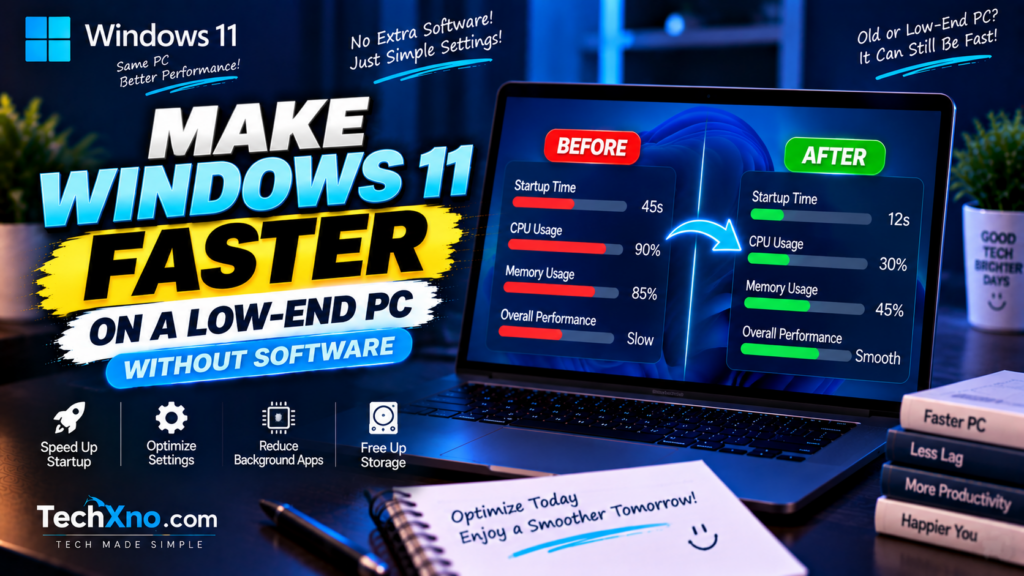
The usual response is to search for a “PC booster,” RAM cleaner, registry optimizer, or some mysterious script promising to make Windows twice as fast. In most cases, you don’t need any of that. Windows 11 already includes several tools that can improve performance without installing additional software, and the safest improvements usually come from reducing unnecessary work rather than trying to force the computer beyond its hardware limits.
If you’re trying to make Windows 11 faster on a low-end PC, start with the changes that remove unnecessary startup programs, background activity, storage pressure and visual overhead. These won’t magically turn a budget laptop into a gaming PC, but on the right machine they can make everyday Windows usage noticeably more responsive.
1. Find Out What Is Actually Making Windows 11 Slow
Before changing ten settings at once, spend a minute finding the bottleneck. Press Ctrl + Shift + Esc to open Task Manager, then look at the Processes and Performance sections. Pay particular attention to CPU, Memory, Disk and GPU usage.
The numbers tell different stories. If memory stays close to full while you’re doing basic work, your PC may simply be struggling with limited RAM. If Disk usage repeatedly sits near 100%, a background process, update, synchronization task or slow storage drive may be creating the bottleneck. High CPU usage while the computer should be idle can point to an application or process doing more work than expected.
Clicking the CPU, Memory or Disk column in Task Manager can help you see which processes are consuming the most resources. Don’t immediately end every process with an unfamiliar name, though. Windows services, drivers, antivirus software and manufacturer utilities don’t always have friendly names.
Also restart the computer before assuming something is seriously wrong. A proper Restart can clear temporary processes and finish pending Windows operations in a way that simply closing the laptop lid doesn’t.
The important idea is simple: don’t optimize blindly. If your PC has 4 GB of RAM and Memory is constantly full, freeing 20 GB of disk space alone isn’t going to solve the entire problem. Find the pressure point first.
2. Disable High-Impact Startup Apps
One of the easiest ways to speed up a low-end Windows 11 PC is to reduce how much software launches automatically when you sign in.
Open Task Manager → Startup apps.
You’ll see applications that Windows can start automatically, and Task Manager can also indicate their startup impact. Look for programs you don’t need immediately after every boot. Game launchers, meeting software, music apps, updaters and other optional utilities can gradually turn a clean Windows startup into a traffic jam.
If you recognize an application and don’t need it automatically, select it and choose Disable. This doesn’t uninstall the application. You can still open it normally whenever you need it.
Be more cautious with security software, graphics utilities, touchpad software, audio components and manufacturer tools you don’t recognize. Some manufacturer applications control features such as keyboard functions, thermal modes, battery charging behavior or hardware settings, so deleting or disabling everything with a strange name is not a good optimization strategy.
Microsoft specifically identifies unnecessary startup apps as something that can affect both startup speed and overall system performance.
A good low-end PC doesn’t need to start with absolutely nothing running. It needs to start with only what you actually need.
3. Stop Unnecessary Background Activity
Startup apps are only part of the problem. Some applications continue performing tasks in the background even when you aren’t actively using them.
Depending on the application and your version of Windows 11, open:
Settings → Apps → Installed apps → [App] → Advanced options
If Windows provides Background app permissions for that application, review whether it actually needs to run in the background.
Communication tools, cloud-sync applications and software that needs to deliver timely notifications may have legitimate reasons to stay active. An application you open twice a month probably doesn’t need the same privilege.
You should also check the applications themselves. Browsers, launchers, cloud-storage clients and communication software may contain their own settings for continuing to run after the main window has been closed.
This matters more on a low-end machine because resources are limited. A modern PC with plenty of RAM may barely notice several idle applications. A 4 GB or 8 GB system has far less room before Windows starts juggling resources between the programs you actually want and the ones you forgot were running.
The goal isn’t to kill every background process. It’s to stop wasting limited resources on work that provides no benefit to you.
4. Free Up C Drive Space With Windows’ Built-In Tools
A nearly full system drive can contribute to poor Windows performance and can also make updates more difficult. Microsoft specifically lists low storage space as one potential cause of a slow PC.
Open:
Settings → System → Storage
Start by reviewing what’s consuming your space. Then check Temporary files and Cleanup recommendations where available.
Windows also includes Storage Sense, which can automatically remove certain unnecessary temporary files and manage Recycle Bin content according to your settings. Microsoft notes that Storage Sense works on the system drive, normally C:, and that Downloads and cloud content aren’t removed under its default behavior unless you configure those options.
That’s an important detail because “clean your PC” should never mean “randomly delete everything Windows lets you select.”
Review files before removing them, particularly previous Windows installations, Downloads or anything you’re uncertain about.
Also uninstall applications and games you genuinely don’t use:
Settings → Apps → Installed apps
If a 40 GB game hasn’t been opened since last summer, freeing that space will accomplish far more than obsessively deleting a few megabytes of browser cache.
For a low-storage PC, try to avoid running the system drive permanently at the edge of its capacity. Windows needs working room for updates, temporary data and normal system operations.
5. Reduce Windows 11 Visual Effects on Weak Hardware
Windows 11 uses animations, shadows, transparency and other visual effects to make the interface feel polished. On modern hardware, they’re usually not a major concern. On particularly weak or older systems, reducing some of that visual overhead can make the interface feel more responsive.
Search Windows for:
Adjust the appearance and performance of Windows
Open it and you’ll find the Visual Effects settings.
Windows provides an Adjust for best performance option that disables many effects at once. Microsoft includes this as one of its own performance recommendations.
However, you don’t necessarily have to disable everything.
Turning every effect off can make Windows look noticeably more basic. A better approach for many users is to experiment with a few unnecessary animations and effects while keeping features that improve usability, such as smooth-looking fonts.
You can also check:
Settings → Accessibility → Visual effects
and disable Animation effects if you prefer a simpler interface.
Don’t expect this change to suddenly double application performance. Its main benefit is that Windows itself can feel snappier, particularly on devices with weak integrated graphics or limited resources.
That’s an important distinction. Faster-looking menus aren’t the same thing as a faster CPU, but responsiveness matters when you’re using the computer every day.
6. Choose the Right Windows 11 Power Mode
Windows 11 can balance performance against energy consumption. On a laptop, that’s useful because maximum performance isn’t always what you want when you’re trying to preserve battery life.
Open:
Settings → System → Power & battery
Look for Power mode.
When you’re connected to power and need maximum responsiveness, Best performance may help Windows prioritize performance more aggressively where supported. Microsoft warns that this can increase power consumption and can cause laptops to run warmer or lose battery faster.
That’s why I wouldn’t tell every laptop owner to leave Best performance enabled permanently.
Use it when performance matters and power availability isn’t a concern. If you’re working away from a charger, a more balanced mode may make much more sense.
And this is where our previous TechXno battery guides become relevant: making a laptop faster and making its battery last longer can involve opposing choices. There isn’t one Windows setting that’s simultaneously “maximum performance” and “minimum power consumption.”
Choose based on what you’re doing.
7. Update Windows, Drivers and Check for Resource-Hungry Problems
If a Windows 11 PC suddenly became slow rather than gradually slowing over several years, don’t assume weak hardware is automatically responsible.
Check:
Settings → Windows Update → Check for updates
Microsoft recommends installing Windows updates and also checking available optional updates, including relevant driver updates, when troubleshooting performance.
After updating, restart the computer and check Task Manager again.
Also run a security scan if unexplained CPU or disk activity continues:
Windows Security → Virus & threat protection
Malware isn’t the explanation for every slow PC, but malicious software can consume CPU, disk and other resources. Microsoft includes malware scanning among its recommended Windows performance troubleshooting steps.
At the same time, avoid making your PC “faster” by disabling important security features simply because somebody’s optimization video told you to.
Security features can have performance costs, and those trade-offs can be more noticeable on old hardware. But blindly disabling Windows security, Defender, firewall protections or core security features for a tiny benchmark improvement is not a sensible general recommendation.
Performance matters.
So does keeping the computer safe enough to use.
8. What Actually Makes the Biggest Difference on a Low-End PC?
After trying the software-side improvements, you need to be realistic about the hardware.
Windows settings can remove unnecessary work, but they cannot create hardware resources that don’t exist.
If your computer has very little RAM, multitasking will remain limited. If it uses an old mechanical hard drive, Windows may still feel dramatically slower than a machine using an SSD. If the processor is extremely weak, demanding applications will remain demanding regardless of how many animations you disable.
For an older PC, one of the biggest hardware improvements can be moving from an HDD to an SSD, if the machine supports the upgrade. Increasing RAM can also make a major difference when insufficient memory is the actual bottleneck and the device allows memory upgrades.
Some modern low-cost laptops have storage or memory soldered to the motherboard, so check the exact model before buying components.
You should also be suspicious of exaggerated optimization claims such as:
“Increase FPS by 300% with one setting!”
“Download more RAM!”
“Delete these 47 registry keys to make Windows super fast!”
“Disable 80 Windows services!”
There is no hidden button Microsoft forgot to press that transforms a weak processor into a high-end one.
For most users, the biggest safe gains come from reducing startup clutter, controlling unnecessary background activity, maintaining enough free storage, fixing abnormal resource usage and upgrading genuinely limiting hardware where practical.
Final Thoughts
If you’re trying to make Windows 11 faster on a low-end PC, resist the temptation to install five “optimizer” programs before you’ve checked Windows itself.
Start with Task Manager and identify what is actually limiting the computer. Disable unnecessary startup applications, reduce background activity, clean up the system drive, simplify visual effects and use an appropriate power mode. Keep Windows and important drivers updated, and investigate unusual CPU, memory or disk usage instead of applying random tweaks.
These changes are particularly useful because they’re largely built into Windows and reversible. You aren’t depending on an unknown registry cleaner or allowing a “PC booster” to make hundreds of changes you don’t understand.
But keep your expectations realistic. Microsoft itself notes that older PCs with outdated hardware may not see major improvements from software troubleshooting alone.
Optimization should make your existing hardware work more efficiently. It can’t rewrite the specification sheet.
If Windows is wasting resources, fix the waste. If the hardware itself is the bottleneck, knowing that is just as valuable—because then you can stop searching for magical software fixes that don’t exist.
Frequently Asked Questions
How can I make Windows 11 faster on a low-end PC?
Start by disabling unnecessary startup applications, reducing unneeded background activity, freeing system-drive space, checking Task Manager for heavy processes and reducing unnecessary visual effects. These changes can improve responsiveness without requiring third-party optimization software.
Can Windows 11 run smoothly on 4 GB of RAM?
Windows 11’s official minimum includes 4 GB of RAM, but meeting a minimum requirement doesn’t guarantee comfortable multitasking with modern browsers and applications. A 4 GB system can become memory-constrained quickly, so keeping startup and background applications under control becomes particularly important.
Does disabling animations make Windows 11 faster?
It can reduce visual overhead and make the interface feel more responsive, especially on weak hardware. However, disabling animations won’t make your processor or storage physically faster, so don’t expect a dramatic improvement in demanding applications.
Should I use Best performance mode in Windows 11?
It can be useful when maximum performance matters and you’re connected to power. On laptops, Microsoft notes that Best performance can increase power consumption and heat, so a balanced mode may be more appropriate when battery life matters.
Does freeing C drive space make Windows 11 faster?
It can help when the system drive is running very low on space. Windows requires storage for temporary files, updates and normal operation, and Microsoft lists low disk space among the possible causes of reduced PC performance.
Should I install a PC cleaner or RAM booster?
Usually not as a first step. Windows already includes Task Manager, Storage Sense, Temporary files, startup controls, Windows Security and performance settings. Start with these built-in tools rather than giving an unknown optimization application broad access to your system.
Will upgrading from HDD to SSD make Windows 11 faster?
On compatible older computers still using a mechanical hard drive, an SSD can substantially improve boot times, application loading and general responsiveness. Check whether your specific PC supports a storage upgrade before purchasing one.
Why is my Windows 11 PC still slow after trying everything?
The limitation may be hardware rather than Windows configuration. Low RAM, a weak processor, slow storage, overheating or aging hardware can limit performance. Task Manager’s Performance section can help you determine which component is regularly reaching its limit.