Phone Storage Full but Nothing to Delete? 12 Android Fixes

Your Android phone says Storage almost full, so you open the gallery expecting to find hundreds of videos.
Nothing.
You check Downloads. Almost empty.
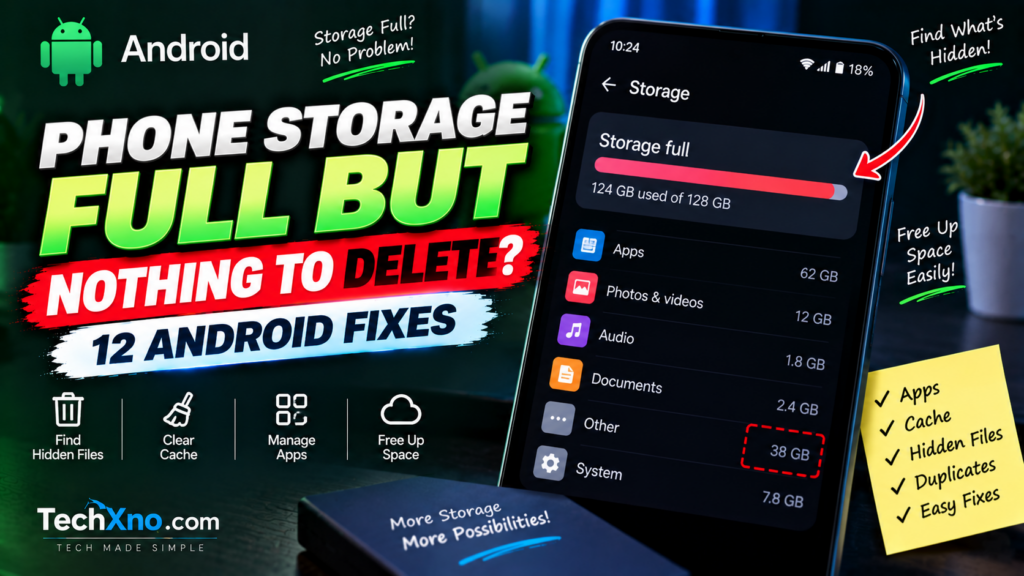
You uninstall two apps, delete some photos, and somehow your phone still claims that 124 GB of its 128 GB storage is occupied.
So where did everything go?
When your phone storage is full but there seems to be nothing to delete, the missing space is usually not imaginary. It may be spread across app data, cached files, WhatsApp or Telegram media, offline downloads, trash folders, duplicate files, or other data that isn’t obvious from your gallery.
Before factory-resetting your phone or randomly deleting folders, use the steps below to find what’s actually consuming the storage.
1. Check What Is Actually Using Your Android Storage
Don’t start deleting things yet.
First, find the category responsible for the problem.
On many Android phones, open:
Settings → Storage
The exact menu can vary between Samsung, Pixel, Xiaomi, OnePlus, Motorola, Vivo, OPPO, Realme and other manufacturers.
Android should divide your storage into categories such as:
Apps
Photos and videos
Audio
Documents
Games
System
Other
Look for the category that’s unusually large.
For example, if photos and videos occupy only 12 GB but Apps consume 65 GB, deleting another hundred photos probably isn’t going to solve your problem.
This sounds obvious, but it’s where many storage-cleaning guides go wrong.
The goal isn’t simply to delete files.
The goal is to identify where your storage went.
2. Check Which Apps Are Using the Most Storage
An app’s installation size isn’t necessarily its real storage footprint.
A social-media app might originally be a few hundred megabytes but accumulate significantly more data after months of use.
Open:
Settings → Apps
Depending on your phone, you may be able to sort applications by size.
Check the largest ones.
Pay particular attention to browsers, social-media apps, streaming services, messaging apps, games, video editors and applications that download content.
Open an app’s storage information and you may see separate values for the app itself, user data and cache.
That’s often where the “missing” storage begins to make sense.
A 300 MB application isn’t necessarily using only 300 MB if it has accumulated several gigabytes of additional data.
3. Clear App Cache — But Don’t Confuse It With Clear Storage
This distinction is extremely important.
Android generally gives you options such as:
Clear cache
and:
Clear storage / Clear data
They are not the same thing.
Clear cache removes temporary files created by an application. The app may take slightly longer to load certain content the next time you use it because some temporary information has to be downloaded or created again.
Clear storage/data is much more aggressive. It removes the application’s stored data and can effectively reset the app.
So don’t see a huge number beside an application and casually press every button available.
If an app has accumulated a large cache, clearing the cache can be a reasonable first step.
Check your largest apps individually rather than downloading a random “RAM booster” or “phone cleaner” promising to magically recover 30 GB.
Your phone already gives you the information you need.
4. Check WhatsApp, Telegram and Other Messaging Apps
This is one of the biggest places hidden storage can accumulate.
Someone sends you a funny 40 MB video.
Then another.
Then your family group discovers “Good Morning” videos.
Six months later, your messaging app has quietly become a multimedia archive.
WhatsApp includes its own storage-management tools. Look inside its settings for Storage and data and the option to manage storage.
Review large videos, frequently forwarded media and conversations occupying substantial space.
Telegram can also build a large local cache because media you’ve viewed may be stored on the device for quicker access.
Other messaging and social applications can behave similarly.
The important point is that these files may not always be obvious when you casually scroll through your main gallery.
If the Apps category is enormous, check your messaging applications before deleting personal photos you actually want.
5. Empty Trash and Recently Deleted Folders
Here’s a surprisingly common reason storage doesn’t immediately return after deleting files:
You haven’t actually deleted them yet.
Many applications move deleted content into a Trash, Bin, Recycle Bin or Recently Deleted folder first.
Until those items are permanently removed, they may continue occupying device storage.
Check places such as:
Google Photos → Trash/Bin
Your phone manufacturer’s Gallery → Trash/Recycle Bin
Files by Google → Trash
and any other file-management or gallery application you regularly use.
Only permanently empty these folders after confirming there’s nothing you want to restore.
This also explains why someone can delete several gigabytes of videos and then wonder why their available storage barely changed.
The files may simply be waiting in the bin.
6. Find Large, Duplicate and Forgotten Files With Files by Google
Instead of manually opening hundreds of folders, you can use Files by Google to inspect your storage.
Open the app and go to its Clean section.
Depending on what’s available on your device, Files by Google can help identify categories such as junk files, large files, duplicate files, screenshots and unused applications.
This is especially useful when you know your phone contains unnecessary data but you don’t know where it’s hiding.
Review the suggestions before deleting anything.
Don’t turn storage cleanup into a competition where the goal is to make the biggest possible number disappear.
A 4 GB video of something important to you is not “junk” merely because it’s large.
Use cleanup recommendations to find files, then decide whether you actually want them.
7. Check Downloads and Offline Content Inside Apps
The Downloads folder isn’t the only place downloaded content can live.
Netflix, YouTube, Spotify, YouTube Music, podcast apps, Google Maps and other applications may store offline content inside their own application data.
That means you can open the normal Downloads folder and see almost nothing while several gigabytes of movies, playlists, maps or podcasts are stored elsewhere.
Open the apps you use for offline content and check their download sections.
Ask yourself:
Do I still need these downloaded movies?
Do I need 14 hours of offline podcasts?
Did I download this playlist for a trip six months ago?
Removing forgotten offline media can recover meaningful space without touching your personal photographs, messages or documents.
8. Archive Apps You Rarely Use Instead of Deleting Everything
You probably have applications you don’t use frequently but don’t necessarily want to remove permanently.
Modern Android versions support app archiving in supported situations.
Archiving can remove parts of an unused application to recover storage while retaining information that makes restoring the app easier later.
On supported Android versions/devices, you may find an Archive option under:
Settings → Apps → [App name] → Archive
Google Play can also support automatically archiving apps you don’t use often.
This can be particularly helpful on phones with 64 GB or 128 GB of storage where several large but rarely used apps consume a meaningful percentage of the device.
For applications you genuinely never use, uninstalling them completely still makes more sense.
But archiving provides a useful middle ground.
9. Use Google Photos Carefully to Free Device Storage
Photos and videos are often among the largest personal files on a phone.
If you use Google Photos backup, its Free up space feature can remove eligible local copies of photos and videos that have already been backed up.
But check that your important media is actually backed up before removing device copies.
Also understand the difference between freeing device space and simply deleting a photograph.
Deleting an item through Google Photos can affect your backed-up photo library as well, depending on what action you’re performing.
So don’t start selecting thousands of family photos because you’re desperate for storage.
Verify your backup.
Then use the appropriate storage-management feature.
For irreplaceable photos and videos, keeping another independent backup is also sensible.
Storage cleanup should never turn into data-loss cleanup.
10. Move Large Personal Files Off the Phone
Sometimes there’s nothing mysterious happening at all.
Your phone is genuinely full.
You’ve recorded years of 4K video, saved large documents, downloaded movies, created editing projects and accumulated thousands of photographs.
In that situation, no cache-clearing trick is going to manufacture another 50 GB.
Move files you want to keep somewhere else.
Depending on your setup, that might mean:
A Windows or Mac computer
External storage
A supported USB drive
An SD card on phones that support one
A reputable cloud-storage service
After confirming the copied files open correctly from their new location, you can remove the device copies you no longer need.
This is much better than deleting valuable memories because a “cleaner” application told you they were large.
11. What Is “Other” or “System” Storage on Android?
This category confuses a lot of people.
You may open Android storage settings and see a surprisingly large Other, System, or similarly named category.
Unfortunately, there isn’t one universal “Delete Other Storage” button.
Depending on the phone and Android version, these categories can include operating-system files, application data, temporary files, caches and information Android can’t neatly classify elsewhere.
Some of it is necessary.
Some of it can shrink when you clear individual app caches, remove offline downloads, uninstall unused applications or clean up app-specific data.
What you should not do is install an unknown application that promises to delete Android system files.
Deleting the wrong system or application data can cause far more trouble than a full-storage notification.
If “Other” is huge, investigate your largest applications first.
The mystery category often becomes much less mysterious once you discover that one messaging, browser or media application has accumulated gigabytes of data.
12. Restart the Phone and Recheck Storage
After a major cleanup, restart your phone.
Then return to:
Settings → Storage
and give Android a moment to recalculate the categories.
If you’ve removed large amounts of data but the storage display hasn’t changed as expected, a restart can help ensure you’re looking at refreshed storage information.
If the device continues reporting almost no free space despite your storage categories not accounting for it, check for system updates and manufacturer-specific storage tools.
A factory reset should be considered a last resort, not Fix #1.
If you eventually decide to reset the device, make sure important photos, messages, authentication information, documents and other personal data are properly backed up first.
Most people should be able to identify the storage problem long before reaching that point.
Final Thoughts
When your phone storage is full but there’s nothing obvious to delete, don’t start randomly removing photos and applications.
Start with:
Settings → Storage
Find the category that’s actually consuming space.
Then investigate large apps, messaging media, app caches, trash folders, offline downloads, duplicate files and forgotten content.
Tools such as Files by Google can make this much easier, while app archiving and properly managed photo backups can help reclaim storage without immediately sacrificing useful apps or personal media.
And sometimes the uncomfortable answer is simply that your phone really is full.
A 128 GB phone doesn’t remain a 128 GB empty phone forever.
Photos accumulate. Videos get larger. Apps grow. Downloads are forgotten.
The trick isn’t finding a magical “clean everything” button.
It’s finding the few places consuming most of your storage and dealing with those first.
Frequently Asked Questions
Why is my phone storage full when I have nothing on it?
Your visible photos and downloads are only part of Android’s storage usage. Apps can accumulate data and cache, messaging apps can store large amounts of media, offline content may be stored inside apps, and deleted files may remain in Trash or Recently Deleted folders.
How do I find hidden storage on Android?
Start with Settings → Storage and inspect the largest categories. Then check the biggest apps individually, Files by Google, messaging-app storage, offline downloads and trash folders.
Is it safe to clear cache on Android?
Generally, clearing an application’s cache removes temporary data rather than your personal app data. Google notes that the app may be slower the next time it opens while temporary information is recreated. Clear storage/data is different and can permanently remove app data, so don’t confuse the two.
Why is “Other” storage so large on Android?
“Other” can contain app data, cached or temporary information, and files that don’t fit neatly into Android’s other storage categories. Its exact contents vary by device and Android implementation.
Can I free Android storage without deleting photos?
Yes. Depending on what’s consuming your storage, you may be able to clear unnecessary cache, remove old downloads and offline media, empty trash, clean messaging-app media, archive unused apps, remove duplicates, or move other files elsewhere.
Does deleting an app’s cache delete my account?
Clearing cache normally removes temporary files rather than resetting your account. However, Clear storage/Clear data is a different action and can remove locally stored application data.
Should I use a phone cleaner app?
Usually, you should start with Android’s built-in storage controls and trusted tools such as Files by Google. Avoid unknown cleaner or “RAM booster” applications that make exaggerated claims or request unnecessary permissions.
Will a factory reset fix full Android storage?
A factory reset removes user data and can resolve some persistent software/storage problems, but it’s an extreme solution. Identify what’s using the storage first and only consider resetting after backing up important data and exhausting safer options.