How to Summarize a PDF With ChatGPT: Step-by-Step Guide

A 70-page PDF lands in front of you and you need to understand it quickly. Reading the entire document might be the ideal approach when every detail matters, but sometimes you first need the main argument, important findings, definitions, or a quick overview before deciding which sections deserve your attention.
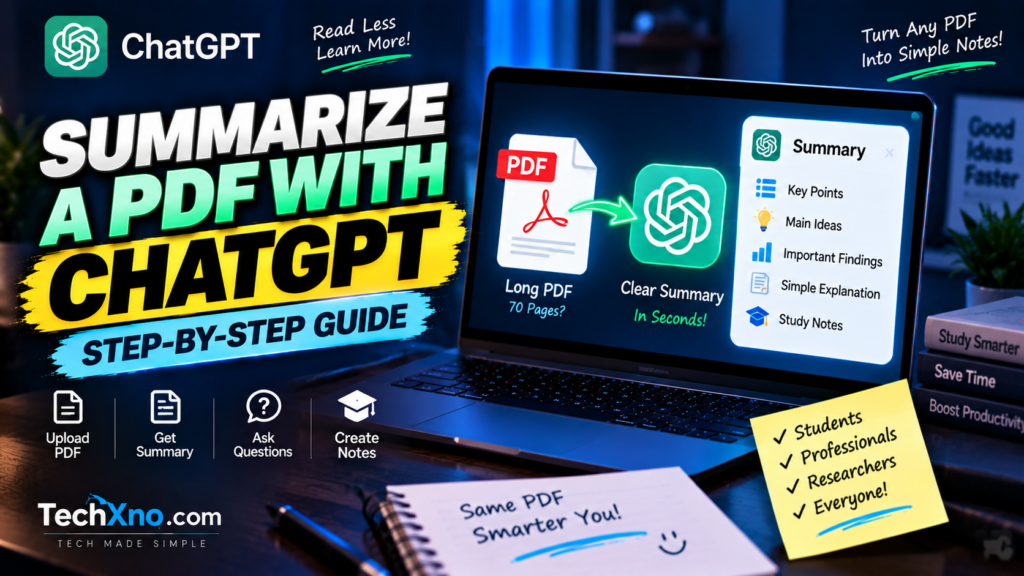
This is where ChatGPT can be useful. Instead of copying pages of text manually, you can upload a supported PDF directly to ChatGPT and ask it to summarize, extract information, simplify difficult sections, or answer questions based on the document.
But simply typing “summarize this PDF” isn’t always the best way to use it. The quality of the result depends heavily on what you ask for and what kind of document you’re working with.
Here’s a practical way to summarize a PDF with ChatGPT and turn a long document into something you can actually work with.
1. How to Upload a PDF to ChatGPT
Start by opening ChatGPT and beginning a new conversation.
Use the attachment/add button near the message box and select the PDF you want to analyze. Depending on the ChatGPT interface and connected services available to you, you may also have other ways to add supported files.
Wait until the PDF has finished attaching before sending your instruction.
You could start with something simple:
“Summarize this PDF for me.”
That works, but I’d recommend giving ChatGPT a little more direction.
For example:
“Summarize this PDF in about 500 words. Explain the main argument, five most important points, key conclusions, and anything I should pay particular attention to.”
Now ChatGPT knows not only that you want a summary, but also what kind of summary would actually be useful.
This distinction becomes much more important with long reports, research papers, textbooks, policies, and technical documents.
2. Use the Right Prompt to Summarize a PDF With ChatGPT
There isn’t one perfect PDF summarization prompt because different documents require different outputs.
A student reading a research paper needs something different from someone reviewing a business report.
Instead of asking for everything at once, tell ChatGPT what you’re trying to learn.
For a general PDF, try:
“Give me a structured summary of this PDF. Include the main topic, key arguments, important facts, conclusions, and a short list of the most important takeaways.”
For a research paper:
“Summarize this research paper under these headings: research question, methodology, key findings, limitations, and conclusion. Explain technical terms in simple language.”
For studying:
“Turn this PDF into study notes. Organize the important concepts by topic, explain difficult ideas simply, and finish with 10 revision questions.”
For a business document:
“Give me an executive summary of this PDF. Focus on major findings, numbers, risks, recommendations, and decisions that require attention.”
Notice what’s happening here.
You’re not changing the PDF.
You’re changing the job you’re asking ChatGPT to perform on the PDF.
That’s one of the easiest ways to get a more useful result.
3. Ask ChatGPT Questions About the PDF
Summarization is only the beginning.
Once the document is available in the conversation, you can ask follow-up questions about its contents.
For example:
“What is the author’s main argument?”
“Explain section 4 in simpler language.”
“What are the three most important findings?”
“Does the document mention any limitations?”
“What does the PDF say about [specific topic]?”
“Compare the recommendations in sections 2 and 6.”
This is particularly useful with long documents because you don’t necessarily want another summary every time.
Maybe you’ve already understood 90% of the report and one paragraph makes absolutely no sense.
Ask about that paragraph.
You can also ask ChatGPT to explain the same concept at different levels:
“Explain this like I’m a beginner.”
and then:
“Now explain it at university level and keep the important technical terminology.”
That turns PDF analysis from a one-time summary into a conversation with the document.
4. How to Summarize a Research Paper With ChatGPT
Research papers deserve a more careful approach than ordinary documents.
A generic summary can hide the distinction between what researchers actually found and what they merely discussed, assumed, or suggested.
For an academic paper, ask ChatGPT to separate the important components.
A useful prompt would be:
“Analyze this research paper and give me: the research question, hypothesis, methodology, sample/data used, major findings, limitations, conclusion, and five important points I should verify in the original paper.”
That final part matters.
If you’re using the information for an assignment, thesis, article, or anything where accuracy matters, don’t treat an AI-generated summary as a replacement for the source.
Use the summary to understand the paper faster, then verify important claims, quotations, numbers, methodology, and conclusions directly against the PDF.
You can also ask:
“Which sections of this paper should I read carefully if I only have 20 minutes?”
That can be more useful than trying to reduce an entire academic paper into ten bullet points.
5. Turn a PDF Into Notes, Questions and a Study Guide
If you’re a student, summarizing the PDF may actually be the least interesting thing you can do with it.
Once ChatGPT understands the relevant document content, ask it to reorganize that information into something easier to study.
For example:
“Turn this PDF into detailed revision notes. Keep the original topic order and highlight definitions, formulas, important dates, and concepts.”
Then continue with:
“Now create 20 multiple-choice questions based only on the PDF. Don’t show the answers until the end.”
You could follow that with:
“Create 10 difficult short-answer questions from the concepts students are most likely to misunderstand.”
Or:
“Make a one-page revision sheet containing only the most important information from this document.”
You can even ask for flashcard-style content:
“Create 30 question-and-answer flashcards from the important concepts in this PDF.”
This workflow is much more useful than asking for one enormous summary and never looking at it again.
Think of the PDF as the source material and ChatGPT as a tool for reorganizing that material around what you’re trying to accomplish.
6. How to Get a Better ChatGPT PDF Summary
If your first summary feels generic, don’t immediately assume the PDF is the problem.
Your prompt may simply be too broad.
There are several ways to make the result more focused.
Specify the length. Ask for a 200-word overview, a detailed 1,000-word explanation, or whatever level of detail you actually need.
Specify the audience. A summary for a beginner should look different from one written for someone already familiar with the subject.
Specify the structure. Tell ChatGPT whether you want paragraphs, headings, chronological notes, an executive summary, or another useful format.
Specify what matters. If you’re interested primarily in financial numbers, methodology, risks, dates, conclusions, or recommendations, say so.
Ask it to separate facts from interpretation. This can be particularly useful when you’re reviewing argumentative or analytical material.
You can also tell ChatGPT:
“Base the answer only on the uploaded PDF. If the document doesn’t provide enough information to answer something, tell me instead of guessing.”
That’s a useful instruction when you specifically want document-grounded answers rather than general knowledge mixed into the response.
7. What ChatGPT Can Miss When Summarizing PDFs
This is the part you shouldn’t skip.
An AI summary can save time, but it shouldn’t automatically become your new source of truth.
ChatGPT can misunderstand context, overlook an important qualification, simplify something too aggressively, or produce an incorrect interpretation.
There are also differences in how PDF content can be processed depending on the ChatGPT plan and the way the file is provided.
For example, OpenAI currently documents Visual Retrieval for PDFs as an Enterprise capability that can interpret images, graphs, and diagrams embedded inside PDFs. For other plans/document-processing situations, PDF handling may rely primarily on extracted digital text rather than understanding every embedded visual.
That distinction can matter enormously.
Imagine a research paper says:
“Results are shown in Figure 4.”
If the important information exists primarily inside a chart, a text-only analysis may not give you the same understanding as actually examining that chart.
Scanned PDFs can create another challenge when useful machine-readable text isn’t available in the way expected.
So if a PDF contains important:
Charts, diagrams, photographs, scanned pages, equations, tables, or unusual layouts
check the relevant sections yourself rather than assuming every visual detail has been interpreted perfectly.
For important work, use ChatGPT to accelerate reading, not eliminate verification.
8. A Better Workflow for Summarizing Long PDFs With ChatGPT
For a large PDF, I wouldn’t begin by asking ChatGPT to explain every detail on every page.
Start broad and gradually narrow down.
A practical workflow looks like this:
Step 1 — Get the overview
Ask:
“Give me a structured overview of this document. What is it about, how is it organized, and what are the main conclusions?”
Step 2 — Identify important sections
Ask:
“Which sections contain the most important information for understanding the document?”
Step 3 — Summarize those sections
Ask for deeper explanations of the sections that matter most.
Step 4 — Ask targeted questions
Investigate specific claims, definitions, arguments, findings, or confusing passages.
Step 5 — Create your final format
Once you understand the document, ask ChatGPT to turn it into notes, an executive summary, revision questions, flashcards, or another useful output.
Step 6 — Verify important information
Return to the original PDF and check critical numbers, quotations, dates, references, methodology, and conclusions.
This approach gives you something much more valuable than a shortcut.
It gives you a map of the document before you spend your time exploring it.
Final Thoughts
Learning how to summarize a PDF with ChatGPT isn’t really about discovering one magical prompt.
The basic process is simple: upload the PDF, explain what you need, and ask ChatGPT to analyze the relevant content.
The bigger improvement comes from being specific.
Ask for the main argument when that’s what you need. Ask for methodology and limitations when you’re reading research. Ask for risks and recommendations when you’re reviewing a business report. Ask for flashcards and revision questions when you’re studying.
And when something matters — a statistic, quotation, conclusion, legal clause, scientific finding, or financial figure — go back and verify it in the original document.
Use ChatGPT to help you understand a 70-page PDF faster.
Just don’t let a 700-word summary convince you that the other 69 pages suddenly stopped mattering.
Frequently Asked Questions
Can ChatGPT summarize a PDF?
Yes. ChatGPT supports file uploads and can summarize supported documents such as PDFs, extract information from them, and answer questions based on their contents.
How do I upload a PDF to ChatGPT?
Use the attachment/add control in the ChatGPT composer and select your PDF. Once it has been attached, provide an instruction describing how you want the document summarized or analyzed.
Can ChatGPT summarize a research paper?
Yes. For better results, ask for specific sections such as the research question, methodology, findings, limitations, and conclusion rather than requesting only a generic summary. Important academic claims should still be verified against the original paper.
Can ChatGPT summarize a very long PDF?
ChatGPT can work with uploaded documents, but file and context limits apply. For very large documents, a structured approach—overview first, followed by targeted questions and section-specific summaries—can be more useful than requesting one enormous summary.
Can ChatGPT read charts and images inside a PDF?
Capabilities depend on how the PDF is processed and the plan being used. OpenAI currently documents Visual Retrieval for PDFs as an Enterprise feature for interpreting embedded images, graphs, and diagrams. In other document-processing scenarios, retrieval may focus on digitally extracted text.
Is it safe to trust a ChatGPT PDF summary?
Use it as an aid rather than unquestioned evidence. For important academic, legal, medical, financial, or professional information, verify critical details directly against the original document and appropriate authoritative sources.
What is the best prompt to summarize a PDF with ChatGPT?
There isn’t one universal best prompt. A strong general starting point is: “Summarize this PDF using only the document. Explain the main topic, key arguments, important facts, conclusions, and anything I should verify in the original. Tell me if the document doesn’t provide enough information for any part of your answer.”