Battery Percentage Not Showing in Windows 11? 8 Easy Fixes

You open your laptop, look at the taskbar, and something feels missing. Maybe the battery icon is there but you can’t see the percentage, or perhaps the battery indicator itself has disappeared.
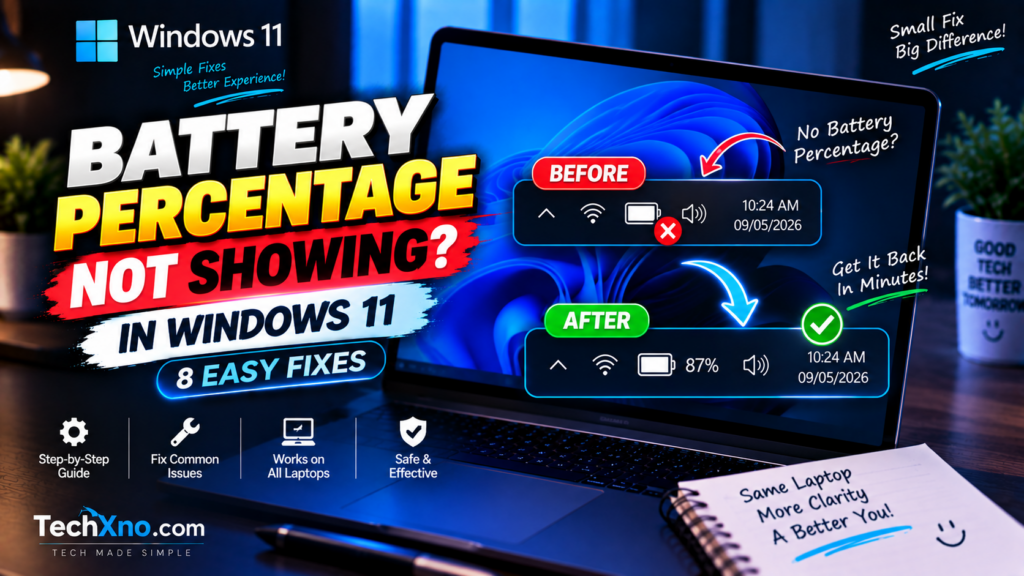
If your battery percentage is not showing in Windows 11, the first thing to understand is that a missing percentage and a completely missing battery icon aren’t always the same problem. Depending on your Windows 11 version, device, and configuration, battery information can appear differently, while driver or hardware problems can prevent Windows from detecting the battery correctly.
So instead of installing a random taskbar utility immediately, let’s first figure out exactly what’s missing and work through the most useful fixes.
1. Check Whether Windows 11 Battery Percentage Is Enabled
Before troubleshooting drivers or resetting anything, check whether your version of Windows 11 provides a battery percentage option.
Open:
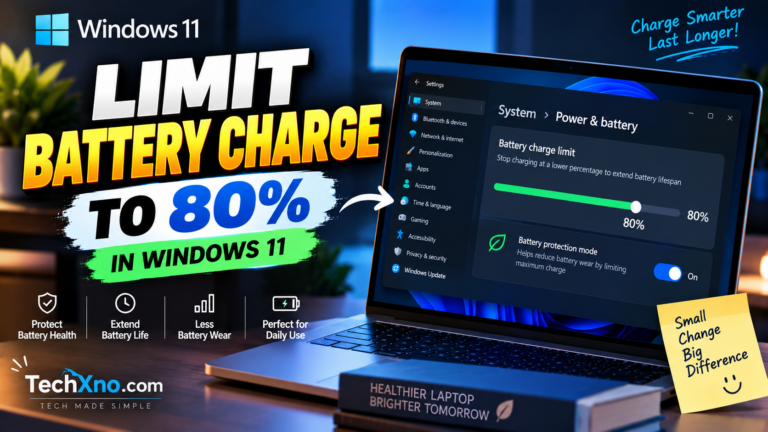
Settings → System → Power & battery
Look for a Battery Percentage option or similar battery display setting.
If the option is available, enable it and check the taskbar again.
It’s also worth installing current Windows updates because Microsoft has changed and improved battery-related taskbar features across Windows 11 releases.
Go to:
Settings → Windows Update → Check for updates
Install appropriate available updates and restart your laptop if required.
If you don’t see a Battery Percentage option at all, don’t assume something is broken. Your Windows build or device may present battery information differently.
The more important question is whether Windows still detects the battery.
2. Check the Battery Icon in the Windows 11 Taskbar
Look at the right side of the Windows 11 taskbar.
Normally, a laptop should display a battery-related indicator in the system tray area. Depending on the current Windows interface and your device, selecting or hovering over the battery/power area may provide additional information about charge level and power status.
If the battery icon is visible but the percentage isn’t, Windows is probably still detecting the battery. That points us more toward a display or Windows-version issue.
If the battery icon itself is completely missing, we need to investigate further.
Restart Windows before doing anything complicated:
Start → Power → Restart
A temporary Windows Explorer or taskbar problem can occasionally disappear after a proper restart.
If it returns, you’re done.
If not, continue below.
3. Restart Windows Explorer to Fix a Missing Battery Icon
The Windows taskbar is managed through Windows Explorer. If the taskbar is behaving strangely, restarting Explorer can refresh it without restarting the entire laptop.
Press:
Ctrl + Shift + Esc
This opens Task Manager.
Find Windows Explorer in the process list, right-click it, and choose:
Restart
Your taskbar may disappear briefly and then reload.
Check whether the battery indicator has returned.
This step is particularly worth trying if other taskbar elements are also behaving strangely — for example, icons aren’t updating correctly or the system tray has become unresponsive.
If the battery remains missing after Explorer reloads, the next thing I’d check is whether Windows can actually see the battery hardware.
4. Check Whether Windows 11 Detects Your Laptop Battery
Right-click the Start button and open:
Device Manager
Expand:
Batteries
On many Windows laptops, you’ll see entries similar to:
Microsoft AC Adapter
and
Microsoft ACPI-Compliant Control Method Battery
The exact entries can vary by system.
If the battery appears normally in Device Manager, Windows is at least recognizing battery-related hardware.
If there’s a warning symbol beside a battery device, or the expected battery entry is missing entirely, there may be a driver, firmware, or hardware-detection issue.
You can also check:
Settings → System → Power & battery
If Windows displays battery usage and power information there, that’s another indication that the operating system can see the battery.
This distinction is important. There’s little point trying to repair the taskbar if Windows itself isn’t detecting a battery.
5. Reinstall the Windows 11 Battery Driver
If the battery is detected but its information isn’t displaying correctly, reinstalling the battery device can be a useful troubleshooting step.
Open:
Device Manager → Batteries
Find Microsoft ACPI-Compliant Control Method Battery or the corresponding battery entry on your laptop.
Right-click it and choose:
Uninstall device
After uninstalling the device, restart the laptop.
Windows should detect the battery hardware again and reinstall the appropriate device automatically.
Once Windows starts, check the taskbar and Power & battery settings again.
Don’t download a mysterious “Windows 11 battery driver” from an unknown driver website. Power management can involve Windows components, manufacturer software, firmware, chipset drivers, and BIOS/UEFI, so third-party driver packages can create more problems than they solve.
If reinstalling the battery device doesn’t help, continue with official updates instead.
6. Update Windows 11, BIOS and Laptop Drivers
A battery display problem can sometimes be connected to system software rather than the taskbar itself.
Start with:
Settings → Windows Update
Check for available updates, install appropriate ones, and restart the laptop.
Next, visit your laptop manufacturer’s official support page and search using the exact model number.
Look for relevant updates such as:
- BIOS/UEFI
- Chipset drivers
- Power-management software
- Firmware
- Manufacturer system utilities
This is particularly worth checking if the battery percentage or icon disappeared after a Windows update, BIOS update, clean Windows installation, or other major system change.
Be careful with BIOS updates. Follow your manufacturer’s instructions exactly and don’t interrupt the process once it begins.
I’d also avoid “driver updater” applications claiming that your computer has 37 critical outdated drivers. For something as hardware-specific as laptop power management, Windows Update and the manufacturer’s official support resources are much safer places to start.
7. Generate a Windows Battery Report to Check Battery Detection
If you’re still unsure whether Windows is communicating properly with the battery, generate a Battery Report.
Open Command Prompt or Windows Terminal and enter:
powercfg /batteryreport
Press Enter.
Windows should generate an HTML report and tell you where it was saved.
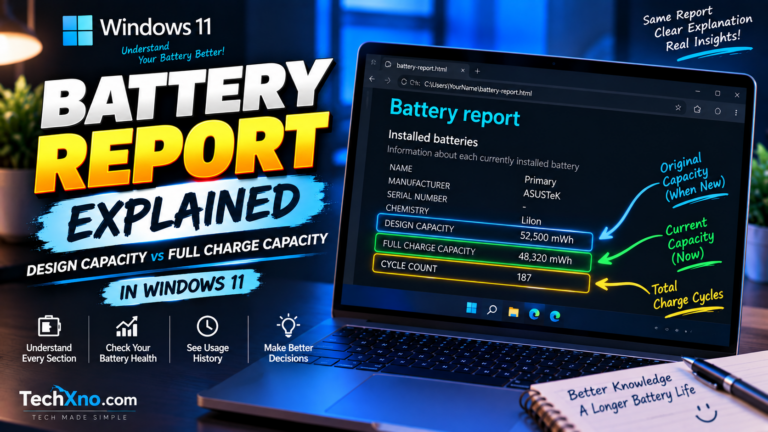
Open the report and find:
Installed batteries
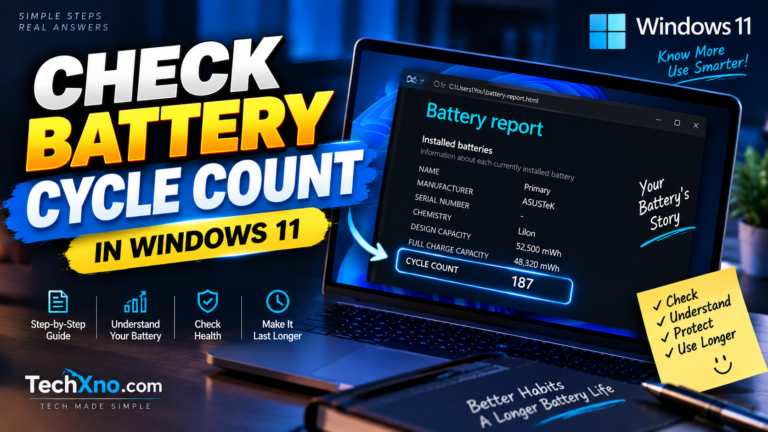
If the report contains information such as the battery name, Design Capacity, Full Charge Capacity, and possibly Cycle Count, Windows is receiving battery information from the system.
This doesn’t automatically solve a missing taskbar percentage, but it gives us an important clue.
For example, if the Battery Report works perfectly but only the taskbar display is wrong, the physical battery itself becomes a less obvious explanation.
If the report can’t provide meaningful battery information either, hardware, firmware, or battery detection deserves more attention.
For a complete explanation of every important section, see our Windows 11 Battery Report Explained: Design Capacity vs Full Charge Capacity guide.
8. What to Do If the Battery Icon Is Still Missing
If you’ve reached this point, separate the problem into two situations.
Battery Works but Percentage Isn’t Displayed
If Windows detects the battery normally, Power & battery settings work, the Battery Report contains valid information, and the laptop charges/discharges normally, the problem is likely related to how battery information is being displayed.
Make sure Windows is fully updated and check the battery-display options available on your current Windows 11 build.
I wouldn’t recommend installing an unknown third-party tool solely to force a percentage onto the taskbar unless you understand exactly what the application is changing.
Windows Doesn’t Detect the Battery
This is more serious.
If the battery doesn’t appear correctly in Device Manager, Windows Battery Report can’t identify it, and the laptop behaves as though no battery exists, the problem may extend beyond the taskbar.
Shut the laptop down and perform any battery/power reset procedure officially documented for your specific model.
If the battery is removable, follow the manufacturer’s instructions for checking it. Most modern laptops use internal batteries, so don’t open the computer unless you’re comfortable doing so and the manufacturer provides an appropriate service procedure.
A failed battery, loose internal battery connection, firmware problem, or motherboard/power circuitry issue may require hardware service.
Final Thoughts
If your battery percentage is not showing in Windows 11, start with the simplest explanation before assuming there’s a hardware problem.
Check your Power & battery settings and Windows version first. Then restart Windows Explorer and confirm that Device Manager can see the battery.
If necessary, reinstall the battery device, update Windows and your manufacturer’s system software, and use powercfg /batteryreport to confirm whether Windows is receiving battery information.
The key is figuring out whether you’re dealing with a missing percentage display or a battery Windows can’t detect at all.
Those problems can look almost identical on the taskbar, but they require very different fixes.
Frequently Asked Questions
How do I show battery percentage in Windows 11?
Check Settings → System → Power & battery for a Battery Percentage option if it’s available on your Windows 11 version. You should also keep Windows updated because taskbar battery features can differ across Windows releases and devices.
Why did my battery percentage disappear in Windows 11?
Possible causes include a changed Windows setting, Windows/taskbar issue, system update, battery-driver problem, firmware issue, or Windows failing to detect the battery correctly.
Why is my Windows 11 battery icon completely missing?
If the entire battery indicator is missing, restart Windows Explorer and then check Device Manager to confirm that Windows detects the battery. If battery information is missing throughout Windows, investigate drivers, firmware, and hardware rather than focusing only on the taskbar.
Why does Device Manager not show my laptop battery?
A missing battery entry can be related to hardware detection, drivers, firmware, or the battery itself. Restart the laptop, check Windows Update, and use your manufacturer’s official support resources for your exact model.
Can I check my battery percentage without the taskbar icon?
Yes. You can check battery information through Settings → System → Power & battery when Windows detects the battery. You can also generate a Battery Report with powercfg /batteryreport for more detailed battery information.
Does a missing battery percentage mean my battery is damaged?
Not necessarily. If the laptop charges normally and Windows still detects the battery, a missing percentage can simply be a display or software issue. Battery damage becomes more concerning when Windows can’t detect the battery or you also experience charging failures, sudden shutdowns, or other abnormal behavior.