Laptop Battery Draining While Sleeping in Windows 11? 9 Fixes

You close your laptop at 80% battery before going to bed. The next morning, you open the lid expecting roughly the same charge and discover it’s sitting at 55%.
That kind of overnight battery loss can be frustrating because the laptop wasn’t supposed to be doing much in the first place.
If your laptop battery is draining while sleeping in Windows 11, the battery itself isn’t automatically the problem. Windows sleep behavior, Modern Standby, network activity, connected devices, background applications, wake events, drivers, or an unhealthy battery can all contribute.
Instead of changing random settings, we’ll first determine whether the laptop is actually sleeping properly and then work through the most likely causes.
1. Check How Much Battery Your Laptop Loses During Sleep
Before troubleshooting anything, measure the problem.
Charge the laptop to a known percentage and write it down. For example:
Battery before sleep: 82%
Close unnecessary applications, disconnect the charger, put the laptop to sleep, and leave it untouched for several hours.
When you return, check again:
Battery after sleep: 78%
A small amount of power usage during sleep isn’t necessarily surprising. Sleep isn’t the same thing as completely shutting down the computer.
But if you see something like:
82% → 52% overnight
that’s worth investigating.
Repeat the test once if necessary. A single unusual night could have been caused by an update or another temporary background process.
Also compare this with shutting the laptop down completely overnight. If it loses very little battery while shut down but substantially more during sleep, you’ve already narrowed the problem toward sleep behavior rather than ordinary battery self-discharge.
2. Check Which Sleep Modes Your Windows 11 Laptop Supports
Not every Windows laptop sleeps in exactly the same way.
Windows includes a useful command that shows which sleep states are available on your computer.
Open Command Prompt or Windows Terminal and enter:
powercfg /a
Press Enter.
Windows will display the sleep states available on your system and may also explain why certain states aren’t supported.
Modern laptops may support Modern Standby, which is different from the traditional sleep behavior many people remember from older PCs.
Modern Standby is designed to allow the system to enter a low-power state while still supporting certain background activities and faster transitions between active and sleeping states.
That doesn’t automatically mean Modern Standby is bad. But if you’re troubleshooting significant overnight battery loss, knowing which sleep system your laptop uses gives you important context.
Don’t try to force unsupported sleep states through random registry modifications simply because an old forum post recommends it. Sleep capabilities depend on the device’s hardware, firmware, drivers, and Windows configuration.
3. Use SleepStudy to Find Windows 11 Sleep Battery Drain
If your laptop supports Modern Standby, Windows has a particularly useful diagnostic tool called SleepStudy.
Open Command Prompt or Windows Terminal and run:
powercfg /sleepstudy
Windows can generate an HTML report containing information about Modern Standby sessions.
Open the generated report and examine periods when the laptop was supposed to be sleeping.
The report can help you understand how much time the system spent in different states and which activity may have contributed to power consumption during those sessions.
You don’t need to understand every technical field immediately.
Start with the obvious question:
Was the laptop remaining in a low-power state, or was something keeping it unusually active?
If one sleep session shows significantly more activity or battery drain than others, that gives you somewhere to investigate instead of blindly disabling Windows features.
If the command isn’t available for your particular sleep configuration, continue with the other troubleshooting steps below.
4. Check Whether Apps Are Keeping the Laptop Active
Applications and services can sometimes interfere with normal power behavior.
Windows provides another useful powercfg command:
powercfg /requests
Run it from Command Prompt or Windows Terminal.
This command can show power requests from applications, drivers, or services that may be preventing certain power-saving behavior.
For example, media playback, audio activity, downloads, hardware drivers, or another process could be requesting that the system remain active.
If the command reports something you recognize, close the relevant application and test sleep again.
But don’t start terminating Windows services simply because their names look unfamiliar.
A process appearing in a diagnostic command doesn’t automatically mean it’s malicious or broken. Identify what it belongs to first.
Also check Task Manager before putting the laptop to sleep. If an application is using significant CPU, disk, GPU, or network resources while you’re supposedly finished with it, close it and compare the next sleep session.
5. Check Windows Update and Background Activity
Windows updates are another reason an overnight test can occasionally produce strange results.
Open:
Settings → Windows Update
Check whether Windows is downloading, installing, or waiting to complete an update.
Restart the computer if required and allow pending updates to finish before testing sleep behavior again.
Also consider applications that regularly perform background work, including cloud-storage synchronization, game launchers, communication applications, backup software, and browsers with active tasks.
The goal isn’t to disable every background feature on your computer.
It’s to identify whether a particular workload corresponds with the nights when your laptop loses excessive battery.
If the problem started immediately after a major Windows or driver update and continues consistently, check your laptop manufacturer’s official support page for relevant BIOS, chipset, graphics, network, or power-management updates for your exact model.
6. Check Network and Connected Devices During Sleep
Your laptop isn’t an isolated box. Network adapters and connected hardware can affect power behavior too.
For troubleshooting, disconnect unnecessary USB devices before putting the laptop to sleep.
That includes external drives, dongles, controllers, hubs, and other accessories you don’t need overnight.
Then compare the battery loss.
If the problem disappears, reconnect devices individually over subsequent tests until you identify which one is associated with the issue.
Network behavior can also matter on systems that support connected standby functionality.
If your laptop manufacturer provides settings controlling network connectivity or device behavior during sleep, review those options before changing anything advanced.
You can also test Airplane mode before sleep for one night.
If battery drain drops dramatically with wireless connectivity disabled, network-related background activity becomes a more interesting suspect.
Treat this as a diagnostic test rather than a permanent solution. You shouldn’t have to disable half your laptop every night just to make sleep usable.
7. Change Lid Close and Sleep Settings in Windows 11
If the battery drains when you close the lid, first make sure closing the lid is actually configured to put the laptop into the power state you expect.
Search Windows for:
Control Panel
Then navigate to:
Hardware and Sound → Power Options → Choose what closing the lid does
Check the setting for When I close the lid, particularly under On battery.
If it’s configured to Do nothing, closing the laptop may leave it running instead of putting it to sleep.
That’s a very different problem.
You can also review:
Settings → System → Power & battery → Screen, sleep & hibernate timeouts
Make sure your sleep behavior matches how you actually use the computer.
For example, if you frequently walk away from the laptop without closing the lid, a sensible automatic sleep timeout can prevent unnecessary battery usage.
After changing a setting, test it rather than changing five more things at once. Troubleshooting becomes much easier when you know which adjustment actually made a difference.
8. Use Hibernate Instead of Sleep for Long Periods
If you regularly leave your laptop unused overnight or carry it in a bag for several hours, Hibernate may be more suitable than Sleep.
Sleep is designed for quick resume and maintains enough system state to wake rapidly. That convenience still requires some power.
Hibernate saves the system state to storage and powers the computer down more completely, so it generally uses considerably less battery while the laptop isn’t being used.
You can check whether Hibernate is available using:
powercfg /a
If Hibernate is supported but isn’t visible in the power menu, Windows power settings may allow you to enable it.
This doesn’t mean everyone should replace Sleep with Hibernate.
If you’re leaving your desk for 20 minutes, Sleep is convenient.
If you’re putting the laptop into a backpack for eight hours, Hibernate can make much more sense — particularly if your device loses more power during sleep than you’d like.
And there’s another practical advantage: a laptop generating unexpected activity and heat while sealed inside a bag is something you want to avoid.
9. Check Battery Health If the Laptop Still Drains Overnight
Suppose you’ve checked sleep behavior, background activity, updates, devices, and power settings, but the battery still seems to lose an unreasonable amount of charge.
Now check the battery itself.
Open Command Prompt or Windows Terminal and run:
powercfg /batteryreport
Open the generated Battery Report and find:
Design Capacity
and
Full Charge Capacity
If Full Charge Capacity has fallen substantially below Design Capacity, the battery has lost some of its original storage capacity.
That matters because a worn battery has less energy available to begin with. A certain amount of sleep power consumption therefore represents a larger percentage of the remaining charge.
For example, losing a fixed amount of energy from a healthy 60 Wh battery looks very different as a percentage than losing the same amount from an older battery that can now hold only 30 Wh.
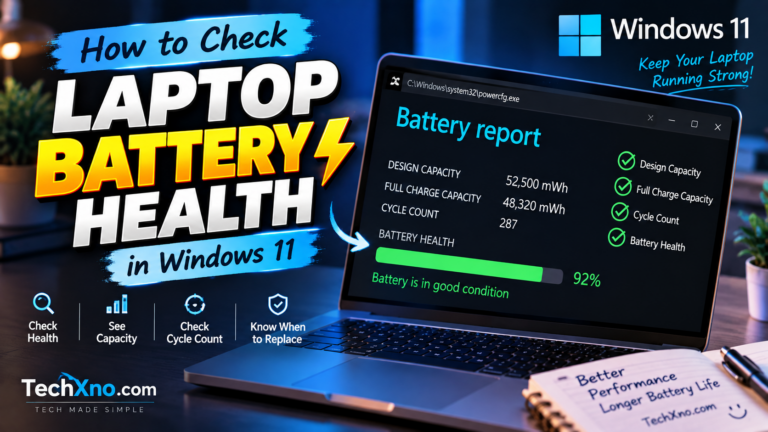
For a complete explanation, read How to Check Laptop Battery Health in Windows 11 and Windows 11 Battery Report Explained: Design Capacity vs Full Charge Capacity.
If your battery health looks reasonable and the laptop also drains quickly while you’re actively using it, see Laptop Battery Draining Fast on Windows 11? 8 Easy Fixes instead.
Final Thoughts
If your laptop battery is draining while sleeping in Windows 11, the most useful thing you can do is determine what happens during the period when you think the computer is asleep.
Start by measuring the actual overnight loss. Then use powercfg /a to understand your supported sleep states and, where applicable, powercfg /sleepstudy to examine Modern Standby activity.
After that, investigate applications, Windows Update, network activity, connected devices, lid settings, and drivers. For long periods away from the laptop, consider Hibernate if it better matches the way you use the computer.
Finally, check battery health if the problem continues.
Because losing 2% overnight and losing 30% overnight are both technically “battery drain during sleep” — but they’re definitely not the same problem.
Frequently Asked Questions
Why does my laptop battery drain while sleeping in Windows 11?
Sleep still requires some power, and certain Windows laptops can support background activity while in low-power states. Excessive drain may be related to Modern Standby activity, applications, network connectivity, connected devices, drivers, updates, incorrect lid settings, or battery degradation.
Why does my laptop lose battery overnight when the lid is closed?
First check what Windows is configured to do when you close the lid. If it is set to Do nothing, the laptop may remain active. If it is sleeping correctly, investigate sleep activity, connected devices, network behavior, and battery condition.
How can I check what is draining the battery during sleep?
On supported Modern Standby systems, powercfg /sleepstudy can generate a SleepStudy report containing information about sleep sessions and activity. powercfg /requests can also help identify applications or drivers making power requests.
Is it normal for a laptop battery to drain during sleep?
Some battery usage during sleep can occur because Sleep isn’t the same as a complete shutdown. The concern is persistent or substantial battery loss that meaningfully affects your ability to use the laptop after waking it.
Should I use Sleep or Hibernate overnight?
For short breaks, Sleep provides a convenient fast resume. For longer periods such as overnight or travelling with the laptop in a bag, Hibernate can be useful because it typically requires much less power while the computer isn’t being used.
Does Modern Standby drain more battery?
Modern Standby allows supported Windows systems to maintain certain capabilities while in a low-power state. Actual battery consumption depends on the device, drivers, firmware, connectivity, and activity occurring during standby. If you suspect excessive consumption, SleepStudy can provide more useful evidence than simply assuming Modern Standby is responsible.