How to Check Laptop Battery Cycle Count in Windows 11

Your laptop battery has been charged hundreds of times, but here’s something many people get wrong: plugging in your charger once doesn’t automatically equal one battery cycle.
A battery cycle represents cumulative usage equal to roughly 100% of the battery’s capacity. So, if you use 50% today, recharge it, and use another 50% tomorrow, that adds up to approximately one complete cycle.
Knowing this number can give you a better idea of how much use your battery has seen. Windows 11 doesn’t put the cycle count directly on the normal Battery settings page, but there’s a built-in way to find it — and you don’t need to install any battery-checking software.
Let’s go through it properly.
How to Check Laptop Battery Cycle Count in Windows 11 Using CMD
The easiest way to check your battery cycle count in Windows 11 is by generating the built-in Windows Battery Report.
Press the Windows key, search for Command Prompt, and open it.
Now enter:
powercfg /batteryreport
Press Enter.
Windows will generate an HTML battery report and display the location where the file has been saved. It will usually look something like:
C:\Users\YourName\battery-report.html
Open File Explorer and navigate to that location, then open battery-report.html in your browser.
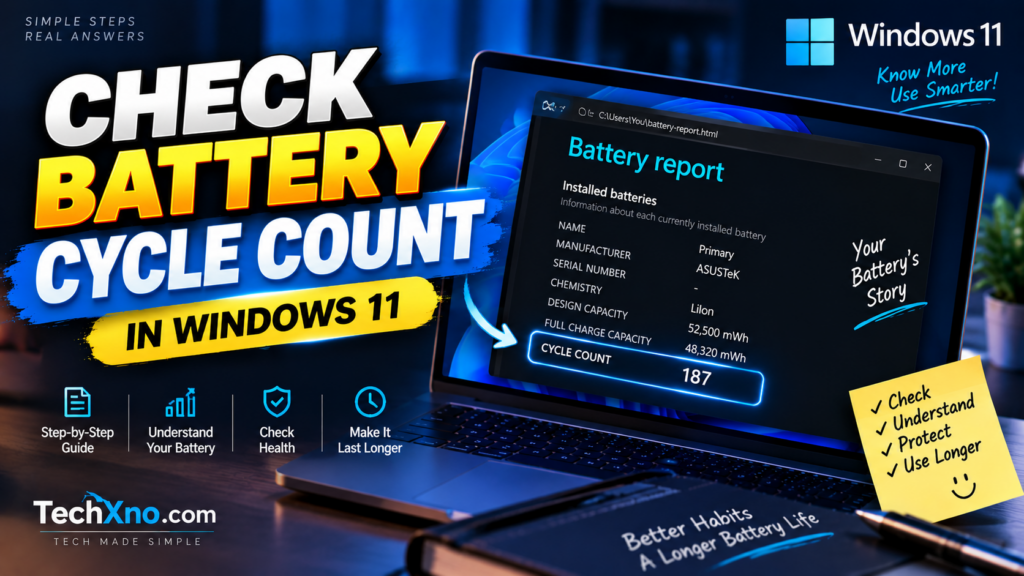
Near the beginning of the report, look for the section called:
Installed batteries
Here you’ll normally find information such as:
Design Capacity
Full Charge Capacity
Cycle Count
The number beside CYCLE COUNT is the battery cycle information being reported to Windows by your laptop.
For example, if it shows:
CYCLE COUNT: 187
your battery has accumulated approximately 187 complete charge cycles.
What Does Laptop Battery Cycle Count Actually Mean?
This is where things get slightly confusing because a battery cycle isn’t simply the number of times you’ve connected your charger.
Imagine you start with a fully charged laptop and use 60% of the battery before charging it again. Later, you use another 40%.
Together, you’ve consumed the equivalent of 100% of the battery’s capacity.
That’s approximately one battery cycle.
Here’s a simpler example:
| Battery Usage | Approximate Cycles |
|---|---|
| Use 100% of battery capacity | 1 cycle |
| Use 50%, recharge, then another 50% | 1 cycle |
| Use 25% four times | 1 cycle |
| Plug the charger in once | Not automatically 1 cycle |
This means a laptop showing 200 cycles hasn’t necessarily been plugged into a charger exactly 200 times.
Think of the cycle count more like an odometer for battery usage. It tells you how much cumulative use the battery has experienced, rather than simply counting charging sessions.
How Many Battery Cycles Is Good for a Laptop?
This is probably the next question you’ll have after finding the number.
Is 100 cycles good? What about 300? 500?
There isn’t one universal cycle-count limit for every Windows laptop.
Different batteries are designed differently, and manufacturers can specify different expected cycle-life characteristics. Battery age, temperature, usage, charging behavior, and remaining capacity also matter.
That’s why I wouldn’t look at a cycle count of, say, 400 and immediately decide:
“Yep, time for a new battery.”
Instead, combine the cycle count with the battery’s actual condition.
Look at:
- Cycle Count
- Design Capacity
- Full Charge Capacity
- Real-world battery runtime
- Battery age
- Charging behavior
A laptop with a relatively high cycle count can still have perfectly usable battery life. Meanwhile, a battery with fewer cycles may perform poorly if it has aged badly or spent a lot of time exposed to excessive heat.
So the cycle count is useful — just don’t treat it as the battery’s expiration date.
Why Is Battery Cycle Count Not Showing in Windows 11?
You generated the Battery Report, opened Installed batteries, found CYCLE COUNT and…
There’s just a dash (-).
Don’t panic.
This can happen because not every laptop battery or firmware exposes usable cycle-count information to Windows. In that situation, Windows may show a dash instead of an actual number.
It doesn’t mean your battery has completed zero cycles.
It simply means Windows isn’t receiving a cycle-count value it can display.
If this happens, check whether your laptop manufacturer provides its own hardware-management application or battery diagnostics.
Depending on your brand, that could include utilities from HP, Lenovo, Dell, ASUS, Acer, or another manufacturer.
You can also check your laptop manufacturer’s official support page using your exact model number.
And don’t download some unknown “battery cycle unlocker” because a website promises to reveal a hidden number. If the hardware isn’t reporting the information, a random Windows utility can’t magically create accurate historical battery data.
Does a High Battery Cycle Count Mean Your Battery Is Bad?
Not necessarily.
A high cycle count tells us that the battery has seen a fair amount of use. What it doesn’t tell us by itself is how well the battery is performing today.
This is why battery cycle count and battery health aren’t the same thing.
For example, imagine two laptops:
Laptop A: 350 cycles and still holds around 88% of its original capacity.
Laptop B: 180 cycles but only holds around 70% of its original capacity.
If you looked only at the cycle count, Laptop A might seem worse. But its remaining capacity tells a different story.
That’s why the Full Charge Capacity and Design Capacity values in your Battery Report are so useful.
You can estimate remaining capacity using:
Battery Health (%) = Full Charge Capacity ÷ Design Capacity × 100
We’ve explained this calculation and the rest of the Battery Report in our guide on How to Check Laptop Battery Health in Windows 11.
The main point is simple: use cycle count as one piece of evidence, not the entire diagnosis.
Can You Reduce or Reset Laptop Battery Cycle Count?
You generally shouldn’t expect to reset the genuine battery cycle count just by reinstalling Windows, formatting the laptop, or deleting the Battery Report.
The report is displaying battery information available from the system’s hardware/firmware rather than creating a new lifetime cycle history every time you run powercfg.
More importantly, reducing the number wouldn’t make the battery healthier anyway.
Imagine changing the odometer on a car from 100,000 km to 20,000 km. The engine hasn’t suddenly become newer.
Same idea here.
If you’re trying to preserve your battery rather than change the number, focus on reducing unnecessary heat and using your manufacturer’s battery-care features when appropriate.
If your laptop spends most of its life plugged in, you may also want to read our guide on How to Limit Battery Charge to 80% in Windows 11.
That can be more useful than worrying about the cycle counter itself.
Should You Check Battery Cycle Count Before Buying a Used Laptop?
Yes — but don’t rely on it alone.
If you’re buying a used Windows laptop, the battery cycle count can give you another clue about how heavily the machine has been used.
Generate the Battery Report and check:
Cycle Count
Design Capacity
Full Charge Capacity
Then actually unplug the laptop and see how the battery behaves.
A low cycle count sounds attractive, but remaining capacity and real-world runtime matter more. Likewise, a higher cycle count doesn’t automatically make a used laptop a bad purchase if the battery still performs well and can be replaced reasonably when needed.
I’d be much more concerned about a battery that drops percentages suddenly, shuts the laptop down unexpectedly, barely lasts away from a charger, or shows physical signs of damage.
If the battery is swollen or deforming the laptop chassis, that’s a hardware safety issue rather than an SEO-worthy percentage calculation — the battery needs proper service.
How to Reduce Battery Wear and Future Charge Cycles
You can’t stop battery cycles completely unless you stop using the battery, which rather defeats the purpose of owning a laptop.
The goal is simply to avoid unnecessary wear.
Keep the laptop reasonably cool, particularly during demanding tasks. Avoid blocking its ventilation on beds or blankets, and use the manufacturer’s battery-care or charging-limit feature if your laptop spends most of its time connected to AC power.
You also don’t need to deliberately discharge a modern laptop battery to 0% every day.
And remember: fewer cycles don’t automatically guarantee a healthier battery. Battery aging is affected by more than just how often you discharge it.
If your laptop battery is losing power much faster than expected, check our guide on Laptop Battery Draining Fast on Windows 11. The problem may be an application or Windows setting rather than battery wear.
Final Thoughts
The easiest way to check your laptop battery cycle count in Windows 11 is surprisingly simple: run powercfg /batteryreport, open the generated report, and look under Installed batteries.
But don’t make the mistake of judging your entire battery from that one number.
Cycle count tells you how much cumulative use the battery has seen. Full Charge Capacity tells you more about how much capacity remains. And your actual runtime tells you whether any of this is becoming a real problem.
Put those three together and you get a much better picture of your laptop battery than you would from obsessing over a single number.
Frequently Asked Questions
Where can I find battery cycle count in Windows 11?
Generate a Windows Battery Report using powercfg /batteryreport, open the generated HTML file, and look for CYCLE COUNT under Installed batteries.
Why does my Windows 11 Battery Report show cycle count as “-“?
A dash generally means Windows isn’t receiving usable cycle-count information from the laptop’s battery or firmware. It doesn’t mean the battery has completed zero cycles.
Does charging from 50% to 100% count as one battery cycle?
Not by itself. Battery cycles are based on cumulative battery usage equivalent to roughly 100% of capacity. Partial discharges can add together over time to form a complete cycle.
Is 500 battery cycles bad for a laptop?
You can’t determine battery condition from 500 cycles alone. Check the manufacturer’s specifications, remaining full-charge capacity, battery age, real-world runtime, and overall behavior before deciding whether the battery needs replacement.
Does reinstalling Windows reset battery cycle count?
Normally, reinstalling Windows doesn’t make the physical battery new or erase the genuine usage recorded by the battery/system hardware. The Windows Battery Report reads the information made available by the device.