How to Check Laptop Battery Health in Windows 11 (Easy Guide)

Laptop batteries naturally lose some of their capacity as they get older. You may notice that a laptop which once lasted six or seven hours now needs a charger after only three or four. But shorter battery life doesn’t always mean the battery needs to be replaced — background apps, display settings, power mode, and heavy workloads can also reduce runtime.
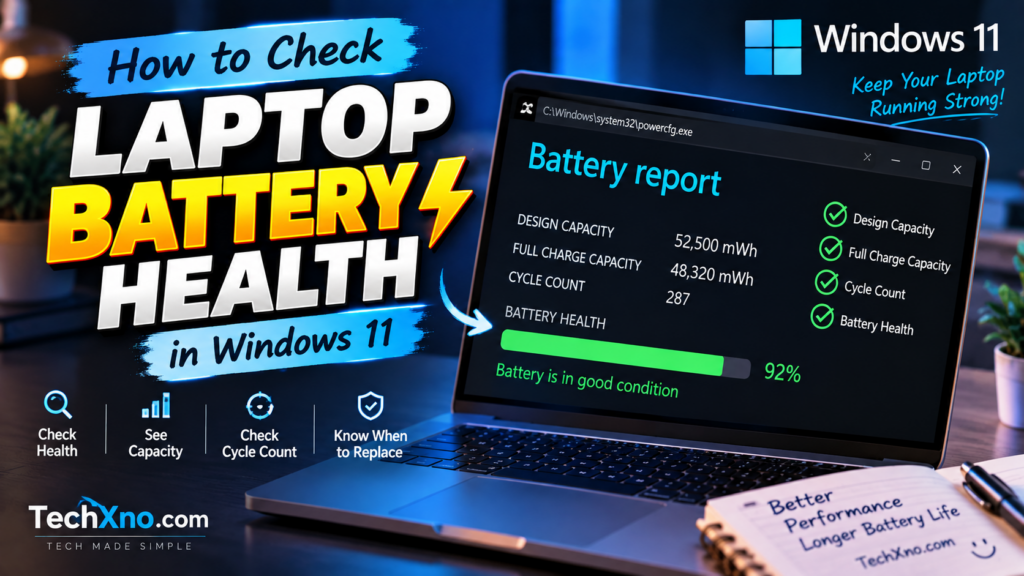
The easiest way to understand what is actually happening is to check your laptop battery health in Windows 11. You don’t need to install any third-party software for this. Windows has a built-in Battery Report that shows your battery’s original design capacity, current full charge capacity, usage history, and other useful information.
In this guide, we’ll generate that report, calculate your battery health percentage, and understand what those numbers actually mean.
How to Check Laptop Battery Health in Windows 11 Using CMD
Windows 11 includes a command-line utility called powercfg that can generate a detailed battery report. It only takes a minute, and you don’t need any additional software.
Press the Windows key and search for Command Prompt. Open it, type the following command, and press Enter:
powercfg /batteryreportWindows will generate an HTML report and display the location where it has been saved. The location will normally look similar to:
C:\Users\YourName\battery-report.html
Open File Explorer, navigate to that location, and double-click the battery-report.html file. It should open automatically in your default web browser.
The report contains quite a lot of information, but don’t let that put you off. You don’t need to understand every table on the page to check the condition of your battery. For a basic battery health check, only a few sections really matter.
How to Read the Windows 11 Battery Report
At the beginning of the Windows 11 Battery Report, you’ll see basic information about your computer followed by an Installed batteries section. This is where you’ll find some of the most useful numbers for checking battery health.
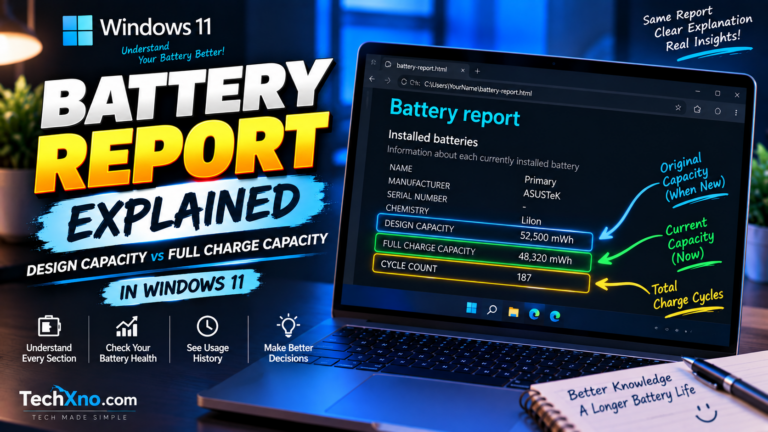
The three values worth paying attention to are Design Capacity, Full Charge Capacity, and Cycle Count.
Design Capacity represents approximately how much energy the battery was designed to hold when it was new. For example, your laptop may have left the factory with a design capacity of 50,000 mWh.
Full Charge Capacity represents approximately how much energy the battery can currently hold when fully charged. If that same battery now has a full charge capacity of 42,000 mWh, it has lost some of its original capacity through normal battery wear.
This explains something that often confuses laptop users: a battery can show 100% charged in Windows while still being worn. The 100% simply means the battery is full relative to its current usable capacity. It doesn’t mean the battery can still hold as much energy as it could when it was new.
The Cycle Count can provide additional context about battery usage. Battery cycles accumulate as the battery is discharged and recharged over time. However, some laptops may not report cycle-count information properly to Windows, so don’t worry if this field is missing or unavailable.
How to Calculate Laptop Battery Health Percentage in Windows 11
Windows gives you the capacity numbers, but it doesn’t always display a simple battery health percentage. Fortunately, you can estimate it yourself using the Design Capacity and Full Charge Capacity from the report.
Use this formula:
Battery Health (%) = Full Charge Capacity ÷ Design Capacity × 100
For example, imagine your Windows Battery Report shows:
Design Capacity: 50,000 mWh
Full Charge Capacity: 40,000 mWh
The calculation would be:
40,000 ÷ 50,000 × 100 = 80%
That means the battery currently holds approximately 80% of its original designed capacity.
Here’s another example. If the Design Capacity is 60,000 mWh and the Full Charge Capacity is 54,000 mWh:
54,000 ÷ 60,000 × 100 = 90%
Your estimated laptop battery health would therefore be around 90%.
Keep in mind that this percentage should be treated as an estimate of remaining capacity rather than a complete diagnosis of the battery. Battery readings can fluctuate, and capacity is only one factor affecting real-world battery performance.
What Is a Good Laptop Battery Health Percentage?
Once you’ve calculated your laptop battery health percentage, the obvious question is whether your result is actually good.
There isn’t a universal percentage at which every laptop battery suddenly becomes “bad.” Battery condition depends on age, usage, chemistry, charging habits, temperature, and the particular laptop. However, the following ranges are useful as a simple reference:
| Battery Health | General Condition |
|---|---|
| 90–100% | Excellent — relatively little capacity loss |
| 80–89% | Good — normal wear for many used batteries |
| 70–79% | Fair — reduced runtime may become noticeable |
| Below 70% | Heavily worn — significantly shorter runtime is possible |
Don’t treat these ranges as strict replacement rules. If your battery is at 78% health but still comfortably lasts through your normal workday, there’s no reason to replace it purely because of a percentage.
Real-world behavior matters just as much as the number. Unexpected shutdowns, extremely rapid discharge, charging problems, or a battery that lasts only a fraction of its original runtime can indicate that it’s worth investigating further.
Check Battery Capacity and Usage History in Windows 11
The Battery Report contains more than just Design Capacity and Full Charge Capacity. If you’re trying to understand why your battery life has changed, a few other sections can be surprisingly useful.
The Recent usage section shows recent power states and whether the laptop was running on battery or connected to AC power. Battery usage provides information about battery drain over recent periods, while Usage history gives a broader picture of how the computer has been used on battery and AC power.
One of the most useful sections is Battery capacity history. This lets you compare the battery’s full charge capacity over time.
For example, if the capacity has gradually moved from 50,000 mWh to 47,000, then 44,000 and eventually 40,000 mWh, you’re probably looking at normal long-term battery wear. A gradual decline is expected as lithium-ion batteries age.
The Battery life estimates section can also compare estimated runtime based on the battery’s current capacity with estimates based on its original design capacity. Don’t treat these estimates as exact promises — your actual battery life will still depend heavily on brightness, applications, CPU/GPU workload, network activity, and power settings.
Why Is Your Laptop Battery Health Decreasing?
Battery degradation is normal. Rechargeable batteries are consumable components, and their ability to store energy gradually decreases as they age.
Heat is one of the biggest factors that can accelerate battery wear. Gaming, rendering, heavy workloads, blocked ventilation, or regularly using a laptop in very hot environments can increase battery temperature. Keeping the laptop plugged in under heavy load can also generate additional heat depending on the device and charging system.
Charging behavior can matter as well, although modern laptops have battery-management systems designed to protect the battery. Some manufacturers provide features that limit charging to around 80% when the laptop spends most of its time connected to power.
If your laptop offers such a feature through its BIOS or manufacturer utility, it may be worth using when you rarely need the full battery capacity.
Most importantly, don’t obsess over small changes in the Battery Report. Seeing your estimated health move from 96% to 94% doesn’t mean something is wrong. Battery capacity measurements can vary slightly, and gradual degradation is expected.
When Should You Replace Your Laptop Battery?
You don’t need to replace a laptop battery simply because its health drops below a particular percentage. The better question is whether the battery still meets your needs and behaves normally.
If your laptop originally lasted seven hours and now lasts five, you may not care. If it only lasts 45 minutes and you constantly need to stay near a charger, replacing the battery starts to make much more sense.
You should pay closer attention if you notice symptoms such as very short runtime, unexpected shutdowns, sudden battery percentage drops, charging problems, or a large loss of full charge capacity.
Physical battery problems are more serious. If the battery appears swollen, the laptop chassis or trackpad starts bulging, or you notice unusual heat, odor, smoke, or leakage, stop using and charging the device and arrange professional service. A physically damaged or swollen lithium-ion battery should not be punctured, pressed, or handled unnecessarily.
If the battery health itself looks fine but your laptop is still losing charge unusually quickly, the battery may not be the problem. Background applications, display brightness, Windows power settings, high CPU/GPU usage, or sleep behavior can all cause excessive battery drain.
Related guide: Laptop Battery Draining Fast on Windows 11? 8 Easy Fixes
How to Keep Your Laptop Battery Healthy for Longer
You can’t completely stop a battery from aging, but you can avoid making the process unnecessarily harsh.
Try to keep the laptop reasonably cool and make sure its ventilation isn’t blocked during demanding workloads. Use your laptop on a hard surface rather than burying its vents in a bed or blanket. If your manufacturer provides a battery charge-limit feature, consider enabling it when your laptop spends most of its life connected to a charger.
You also don’t need to deliberately drain a modern laptop battery to 0% every day. Regular deep discharges aren’t required for normal lithium-ion battery use.
For everyday battery life, Windows 11’s Power & battery settings are worth checking too. A sensible power mode, reasonable screen brightness, Energy saver, and fewer unnecessary background applications can improve how long each charge lasts.
Just remember the difference between battery health and battery life. Battery health describes the condition and remaining capacity of the physical battery. Battery life describes how long your laptop lasts during a particular charge. You can have a relatively healthy battery and still get poor battery life because an application is consuming too much power.
Frequently Asked Questions
Does Windows 11 have a built-in battery health checker?
Windows 11 can generate a detailed Battery Report using the powercfg /batteryreport command. The report includes Design Capacity, Full Charge Capacity, usage history, battery capacity history, and other useful information that can help you evaluate battery condition.
How can I check laptop battery health percentage?
Generate a Windows Battery Report and divide Full Charge Capacity by Design Capacity, then multiply the result by 100. For example, 40,000 mWh divided by 50,000 mWh equals an estimated battery health of 80%.
Is 80% battery health good for a laptop?
An estimated 80% capacity means the battery can hold roughly 80% of its original designed capacity. Whether that is acceptable depends on your real-world runtime and needs. You don’t necessarily need to replace a battery simply because it reaches 80%.
Why does my laptop show 100% charge if the battery health is low?
The charging percentage represents how full the battery is relative to its current capacity. A worn battery can therefore reach 100% charge while storing considerably less energy than it did when it was new.
Can laptop battery health be increased?
Software cannot restore physical capacity that has been permanently lost through battery degradation. However, reducing unnecessary power consumption can improve battery runtime, and avoiding excessive heat may help reduce additional wear over time.
Final Thoughts
The easiest way to check laptop battery health in Windows 11 is to generate the built-in Battery Report with powercfg /batteryreport. You don’t need third-party battery software, and the entire process takes only a few minutes.
Start by comparing Design Capacity with Full Charge Capacity, then calculate the estimated battery health percentage if you want a simple number. After that, use the capacity history, usage data, and your laptop’s real-world runtime to understand the bigger picture.
And don’t panic just because your battery isn’t sitting at 100% health anymore. Some capacity loss is a normal part of owning a laptop.
What matters is whether the battery still gives you the runtime you need — and whether it’s behaving normally while doing it.